PUP.Opera Browser
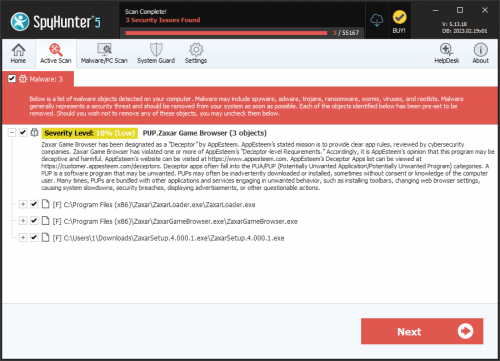
The detection of PUP.Opera Browser on your system indicates the presence of a potentially unwanted program (PUP) that may be causing issues with your browser and overall system performance. It's essential to understand what this detection means and how to properly remove it to ensure your system's security and integrity.
Table of Contents
What Is PUP.Opera Browser?
A PUP, or potentially unwanted program, is a type of software that may be installed on your system without your full knowledge or consent. These programs can range from annoying adware that displays unwanted advertisements to more malicious software that can compromise your system's security. PUP.Opera Browser specifically suggests that the issue is related to the Opera browser, but it does not necessarily imply that the Opera browser itself is malicious. Instead, it indicates that something related to Opera has been flagged as potentially unwanted.
How PUP.Opera Browser Operates
PUPs like PUP.Opera Browser often operate by modifying browser settings, installing additional toolbars or extensions, or changing your default search engine and homepage. They can also collect user data, such as browsing history and search queries, to display targeted advertisements. In some cases, PUPs can be more invasive, monitoring keystrokes, or even downloading and installing other malicious software.
These programs usually find their way onto your system through bundled software installations, where a desired program is packaged with additional, unwanted software. Users may inadvertently agree to the installation of these PUPs by not carefully reading through the installation prompts and terms of service.
Symptoms of Infection
Symptoms of a PUP.Opera Browser infection can vary but commonly include an increase in unwanted advertisements, changes to your browser's homepage or search engine, the appearance of new, unfamiliar toolbars or extensions, and overall slower system performance. You might also notice that your browser redirects to unexpected websites or that you are unable to change certain browser settings back to their original state.
How to Remove PUP.Opera Browser
- Enter Safe Mode with Networking to prevent the malware from loading and to give you a cleaner environment to work in.
- Perform a full scan of your system using a reputable anti-malware tool, such as SpyHunter. This can help identify and remove the PUP and any associated files or programs.
- Uninstall suspicious programs that you do not recognize or that were installed around the time you first noticed the issue. Be cautious and ensure you are not uninstalling necessary system components.
- Reset your browsers (Chrome, Firefox, Edge, etc.) to their default settings. This can help remove any changes made by the PUP, such as unwanted extensions or modified search engines.
- After completing the above steps, reboot your system and perform another scan with your anti-malware tool to ensure that the PUP has been fully removed.
Conclusion
Removing PUP.Opera Browser requires careful attention to detail and a systematic approach to ensure that all components of the PUP are eliminated from your system. By following the steps outlined above and maintaining good computing practices, such as regularly scanning your system for malware and being cautious with software installations, you can help protect your system from future infections. Remember, prevention is key, and staying informed about the latest threats and best practices for system security is crucial in today's digital landscape.