PUP.The PC Optimizer
Threat Scorecard
EnigmaSoft Threat Scorecard
EnigmaSoft Threat Scorecards are assessment reports for different malware threats which have been collected and analyzed by our research team. EnigmaSoft Threat Scorecards evaluate and rank threats using several metrics including real-world and potential risk factors, trends, frequency, prevalence, and persistence. EnigmaSoft Threat Scorecards are updated regularly based on our research data and metrics and are useful for a wide range of computer users, from end users seeking solutions to remove malware from their systems to security experts analyzing threats.
EnigmaSoft Threat Scorecards display a variety of useful information, including:
Popularity Rank: The ranking of a particular threat in EnigmaSoft’s Threat Database.
Severity Level: The determined severity level of an object, represented numerically, based on our risk modeling process and research, as explained in our Threat Assessment Criteria.
Infected Computers: The number of confirmed and suspected cases of a particular threat detected on infected computers as reported by SpyHunter.
See also Threat Assessment Criteria.
| Threat Level: | 10 % (Normal) |
| Infected Computers: | 113 |
| First Seen: | March 27, 2019 |
| Last Seen: | April 12, 2022 |
| OS(es) Affected: | Windows |
The detection of PUP.The PC Optimizer on your system indicates the presence of a potentially unwanted program (PUP) that may be causing issues with your computer's performance and security. It is essential to understand the nature of this threat and take appropriate steps to remove it and prevent future infections.
Table of Contents
What Is PUP.The PC Optimizer?
PUP.The PC Optimizer is a type of potentially unwanted program that is designed to appear as a useful tool for optimizing and improving computer performance. However, its primary purpose is often to generate revenue for its developers through various means, such as displaying advertisements, collecting user data, or promoting other PUPs. These programs can be installed on a system without the user's knowledge or consent, often through bundled software downloads or deceptive marketing tactics.
How PUP.The PC Optimizer Operates
Once installed, PUP.The PC Optimizer may operate in the background, consuming system resources and potentially causing issues with system stability and performance. It may also collect user data, such as browsing history and search queries, to display targeted advertisements or sell to third-party companies. In some cases, PUPs like PUP.The PC Optimizer may also install additional components or plugins, such as toolbars or browser extensions, to further compromise the system and user experience.
Symptoms of Infection
Systems infected with PUP.The PC Optimizer may exhibit a range of symptoms, including slowed system performance, increased pop-up advertisements, and changes to browser settings or homepage. Users may also notice unfamiliar programs or icons on their system, or experience issues with system crashes or freezes. In some cases, PUPs like PUP.The PC Optimizer may also attempt to deceive users into purchasing unnecessary software or services, or prompt them to call fake tech support numbers.
- Slow system performance or freezes
- Increased pop-up advertisements or sponsored content
- Changes to browser settings or homepage
- Unfamiliar programs or icons on the system
- Deceptive marketing tactics or fake alerts
How to Remove PUP.The PC Optimizer
- Boot your system in Safe Mode with Networking to prevent the PUP from loading and to allow for easier removal.
- Perform a full scan of your system using a reputable anti-malware tool, such as SpyHunter, to detect and remove all components of PUP.The PC Optimizer.
- Uninstall any suspicious programs or applications that may be related to the PUP, using the Add/Remove Programs feature in the Control Panel.
- Reset your web browsers, including Chrome, Firefox, and Edge, to their default settings to remove any changes made by the PUP.
- Reboot your system and perform a follow-up scan to ensure that all components of PUP.The PC Optimizer have been removed.
Conclusion
Removing PUP.The PC Optimizer from your system is essential to prevent further issues with system performance and security. By following the steps outlined above and using reputable anti-malware tools, you can effectively remove this PUP and prevent future infections. It is also important to practice safe computing habits, such as regularly updating software and avoiding suspicious downloads, to minimize the risk of PUP infections and other types of malware.
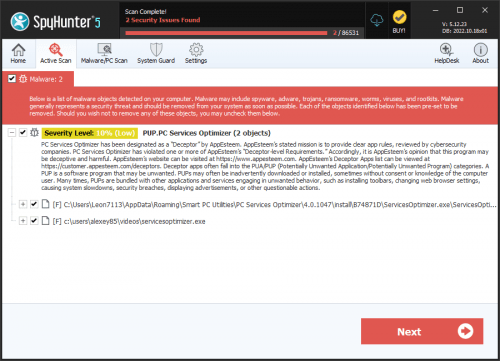
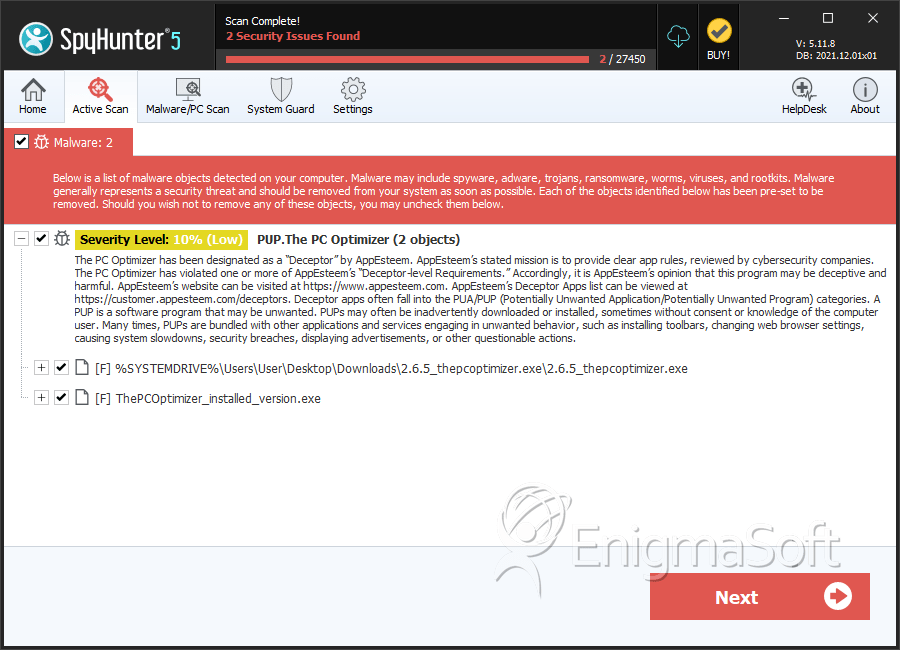
SpyHunter Detects & Remove PUP.The PC Optimizer
File System Details
| # | File Name | MD5 |
Detections
Detections: The number of confirmed and suspected cases of a particular threat detected on
infected computers as reported by SpyHunter.
|
|---|---|---|---|
| 1. | 2.6.5_thepcoptimizer.exe | 09b22748ce22a412c172a8ddd2c05725 | 51 |
| 2. | ThePCOptimizer_installed_version.exe | 97df8c29e6b4f319696b7b9b9d4aa80d | 8 |