PUP.Advanced Password Manager
The detection of PUP.Advanced Password Manager on your system indicates the presence of a potentially unwanted program (PUP) that may compromise your security and privacy. This type of software is designed to appear useful but often exhibits behaviors that are detrimental to your computing experience. Understanding what PUP.Advanced Password Manager is, how it operates, and its symptoms can help you take the necessary steps to remove it and protect your system.
Table of Contents
What Is PUP.Advanced Password Manager?
PUPs like PUP.Advanced Password Manager are programs that you may have inadvertently installed, often bundled with other software you intended to install. They can offer functionalities that seem beneficial, such as password management, but their primary goal is usually to generate revenue for their developers through various means, including advertising, data collection, and selling your personal information. These programs can significantly degrade your system's performance and pose serious security risks.
How PUP.Advanced Password Manager Operates
PUP.Advanced Password Manager likely operates by integrating itself into your system and web browsers, potentially altering settings to facilitate its data collection and advertising activities. It may collect your browsing history, login credentials, and other sensitive information, which could be used for malicious purposes. This PUP might also display unwanted advertisements, redirect your searches, and slow down your internet browsing experience. Its ability to operate in the background, without your full knowledge or consent, makes it particularly problematic.
Symptoms of Infection
Recognizing the symptoms of a PUP.Advanced Password Manager infection is crucial for taking prompt action. Common symptoms include an increase in unwanted pop-ups and advertisements, unexpected changes in your browser's homepage or search engine, and a general slowdown in your system's performance. You might also notice unfamiliar programs installed on your computer or toolbars added to your web browsers. These signs indicate that your system has been compromised and that you need to take steps to remove the PUP.
How to Remove PUP.Advanced Password Manager
- Boot your computer in Safe Mode with Networking to prevent PUP.Advanced Password Manager from loading and to give you a cleaner environment to work in.
- Conduct a full scan of your system using a reputable anti-malware tool, such as SpyHunter, to detect and remove all components of the PUP.
- Uninstall any suspicious programs that you do not recognize or that were installed around the time your issues began. Be cautious and ensure you are removing the correct programs to avoid causing system instability.
- Reset your web browsers (Chrome, Firefox, Edge, etc.) to their default settings to remove any changes made by the PUP, such as altered homepages or search engines, and to delete any associated cookies and cache.
- Reboot your computer and perform another scan with your anti-malware tool to ensure that all traces of PUP.Advanced Password Manager have been removed.
Conclusion
Removing PUP.Advanced Password Manager from your system requires a combination of technical knowledge and the right tools. By following the steps outlined above and maintaining good computing practices, such as regularly scanning your system for malware and being cautious with the software you install, you can protect your system from PUPs and other types of malware. Remember, prevention is key, and staying informed about the latest threats and how to mitigate them is essential in today's digital landscape.
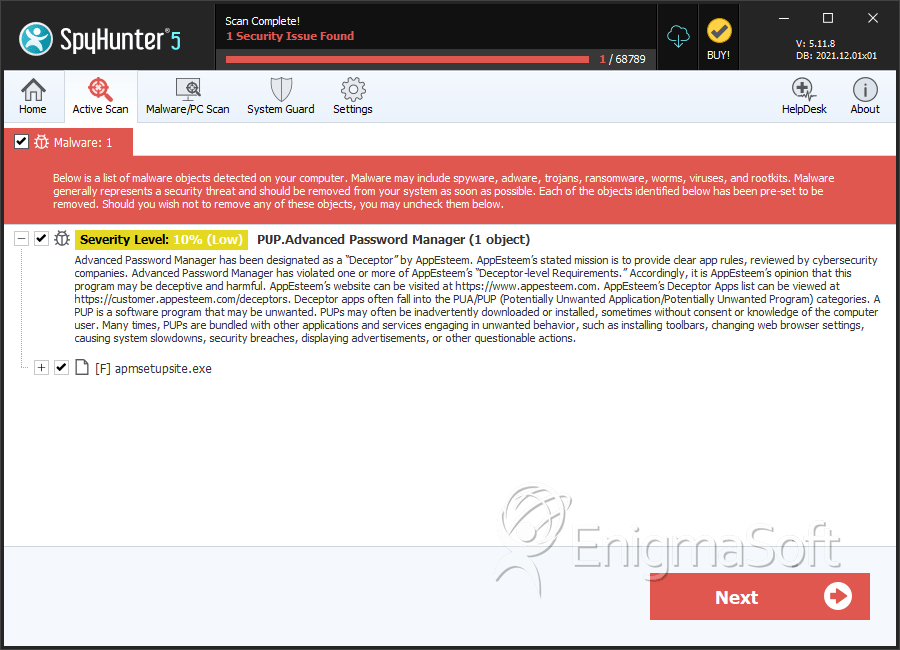
SpyHunter Detects & Remove PUP.Advanced Password Manager