PUP.Hoolapp
Threat Scorecard
EnigmaSoft Threat Scorecard
EnigmaSoft Threat Scorecards are assessment reports for different malware threats which have been collected and analyzed by our research team. EnigmaSoft Threat Scorecards evaluate and rank threats using several metrics including real-world and potential risk factors, trends, frequency, prevalence, and persistence. EnigmaSoft Threat Scorecards are updated regularly based on our research data and metrics and are useful for a wide range of computer users, from end users seeking solutions to remove malware from their systems to security experts analyzing threats.
EnigmaSoft Threat Scorecards display a variety of useful information, including:
Popularity Rank: The ranking of a particular threat in EnigmaSoft’s Threat Database.
Severity Level: The determined severity level of an object, represented numerically, based on our risk modeling process and research, as explained in our Threat Assessment Criteria.
Infected Computers: The number of confirmed and suspected cases of a particular threat detected on infected computers as reported by SpyHunter.
See also Threat Assessment Criteria.
| Popularity Rank: | 14,976 |
| Threat Level: | 10 % (Normal) |
| Infected Computers: | 10,564 |
| First Seen: | April 16, 2013 |
| Last Seen: | August 26, 2026 |
| OS(es) Affected: | Windows |
The detection of PUP.Hoolapp on your system indicates the presence of a potentially unwanted program (PUP) that may be causing issues with your computer's performance and security. It's essential to understand what this detection means and how to properly remove it to prevent any potential harm.
Table of Contents
What Is PUP.Hoolapp?
PUP.Hoolapp is a type of software that is not necessarily malicious but can still cause problems for users. Potentially unwanted programs often get installed on a system without the user's full knowledge or consent, sometimes bundled with other software or through deceptive download links. These programs can range from annoying adware that displays unwanted advertisements to more intrusive software that can compromise system security or privacy.
How PUP.Hoolapp Operates
PUPs like PUP.Hoolapp typically operate by integrating themselves into a system in a way that makes them difficult to remove. They might alter system settings, add themselves to startup programs, or modify browser configurations to ensure their persistence. Their primary goal can vary, but common behaviors include collecting user data for targeted advertising, displaying pop-ups or banners, or redirecting web searches to affiliate sites.
Symptoms of Infection
Identifying a PUP infection can be challenging, but there are several symptoms to look out for. These include an increase in pop-up advertisements, unexpected changes in your browser's homepage or search engine, the appearance of unfamiliar programs or toolbars, and overall system slowdown. If you've noticed any of these signs, it's crucial to take action to remove the unwanted software.
- Increased number of pop-up ads or banners
- Unexplained changes in browser settings
- Presence of unfamiliar programs or toolbars
- System performance issues
How to Remove PUP.Hoolapp
Removing PUP.Hoolapp requires a systematic approach to ensure all components are eliminated. Follow these steps:
- Boot your computer in Safe Mode with Networking to prevent the PUP from interfering with the removal process.
- Use a reputable anti-malware tool, such as SpyHunter, to perform a full scan of your system. This will help identify and remove all traces of the PUP.
- Manually uninstall any suspicious programs that were installed around the time the PUP was detected. Be cautious and only remove programs you are sure are not needed.
- Reset your web browsers (Google Chrome, Mozilla Firefox, Microsoft Edge) to their default settings to remove any changes made by the PUP.
- Reboot your computer and perform another scan with your anti-malware tool to ensure all remnants of the PUP have been removed.
Conclusion
Dealing with a PUP.Hoolapp infection requires patience and diligence. By understanding what PUPs are, how they operate, and taking the right steps to remove them, you can restore your system's security and performance. Remember, prevention is key; always be cautious when downloading software, read user agreements carefully, and keep your antivirus and operating system up to date to minimize the risk of future infections.
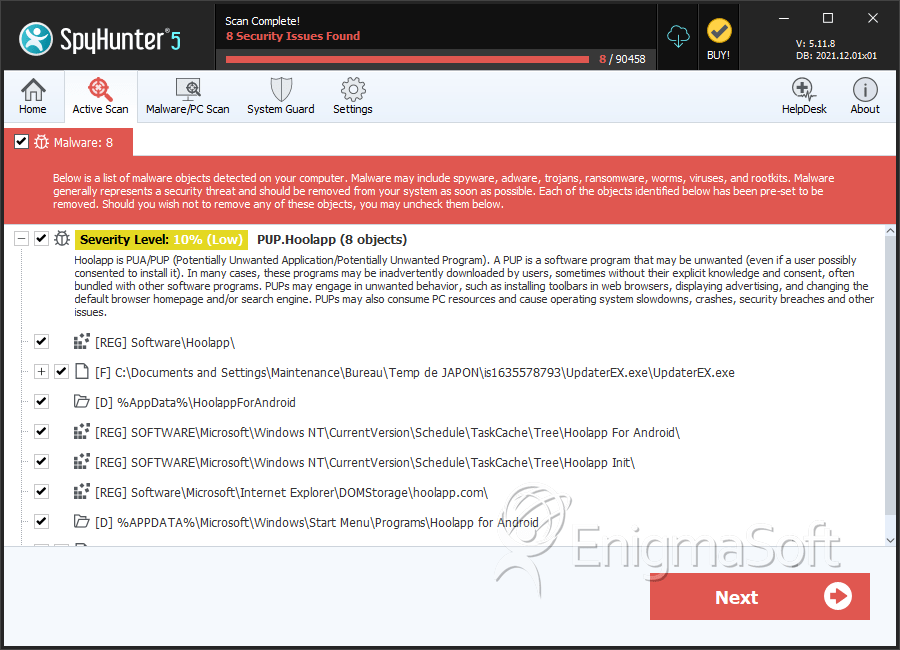
SpyHunter Detects & Remove PUP.Hoolapp
File System Details
| # | File Name | MD5 |
Detections
Detections: The number of confirmed and suspected cases of a particular threat detected on
infected computers as reported by SpyHunter.
|
|---|---|---|---|
| 1. | Hoolapp.exe | 0fa15b1adaaa642ffbfe0ae9e959af51 | 2,830 |
| 2. | UpdateTask.exe | 82ee45f7bd2135c3cdf0d656e4874000 | 14 |
| 3. | UpdaterEX.exe | 7f8caab43177a9ea3fc2d6372354f061 | 13 |
Registry Details
Directories
PUP.Hoolapp may create the following directory or directories:
| %APPDATA%\Microsoft\Windows\Start Menu\Programs\Hoolapp |
| %APPDATA%\Microsoft\Windows\Start Menu\Programs\Hoolapp for Android |
| %AppData%\HoolappForAndroid |