PUP.Content Cleaner
Threat Scorecard
EnigmaSoft Threat Scorecard
EnigmaSoft Threat Scorecards are assessment reports for different malware threats which have been collected and analyzed by our research team. EnigmaSoft Threat Scorecards evaluate and rank threats using several metrics including real-world and potential risk factors, trends, frequency, prevalence, and persistence. EnigmaSoft Threat Scorecards are updated regularly based on our research data and metrics and are useful for a wide range of computer users, from end users seeking solutions to remove malware from their systems to security experts analyzing threats.
EnigmaSoft Threat Scorecards display a variety of useful information, including:
Popularity Rank: The ranking of a particular threat in EnigmaSoft’s Threat Database.
Severity Level: The determined severity level of an object, represented numerically, based on our risk modeling process and research, as explained in our Threat Assessment Criteria.
Infected Computers: The number of confirmed and suspected cases of a particular threat detected on infected computers as reported by SpyHunter.
See also Threat Assessment Criteria.
| Threat Level: | 10 % (Normal) |
| Infected Computers: | 20 |
| First Seen: | December 2, 2015 |
| Last Seen: | February 25, 2022 |
| OS(es) Affected: | Windows |
The detection of PUP.Content Cleaner on your system indicates the presence of a potentially unwanted program (PUP) that may be causing issues with your computer's performance and security. It is essential to understand the nature of this threat and take appropriate steps to remove it and prevent future infections.
Table of Contents
What Is PUP.Content Cleaner?
PUP.Content Cleaner is a type of potentially unwanted program that may have been installed on your system without your knowledge or consent. PUPs are often bundled with other software or downloaded from the internet, and they can cause a range of problems, including slowing down your computer, displaying unwanted ads, and potentially exposing your personal data to risk.
While PUPs are not typically considered to be malicious in the same way as viruses or Trojans, they can still have a significant impact on your system's performance and security. It is crucial to take steps to remove PUP.Content Cleaner and prevent future infections.
How PUP.Content Cleaner Operates
PUP.Content Cleaner, like other PUPs, may operate by installing itself on your system and then running in the background, often without your knowledge or consent. It may display unwanted ads, collect your personal data, or slow down your computer's performance. In some cases, PUPs may also install additional software or malware on your system, which can further compromise your security.
It is essential to be aware of the potential risks associated with PUPs and take steps to protect your system. This includes being cautious when downloading software from the internet, avoiding suspicious links or emails, and using reputable antivirus software to scan your system regularly.
Symptoms of Infection
If your system is infected with PUP.Content Cleaner, you may notice a range of symptoms, including slow system performance, unwanted ads or pop-ups, and potentially unexpected changes to your browser settings or homepage. You may also notice that your system is running more slowly than usual or that your browser is crashing frequently.
In some cases, you may not notice any symptoms at all, which is why it is essential to use reputable antivirus software to scan your system regularly and detect potential threats.
How to Remove PUP.Content Cleaner
- Boot your system in Safe Mode with Networking to prevent PUP.Content Cleaner from running and to give you access to the internet.
- Use a reputable tool, such as SpyHunter, to perform a full scan of your system and detect any malware or PUPs that may be present.
- Uninstall any suspicious programs that may be associated with PUP.Content Cleaner, using the Add/Remove Programs feature in your system's Control Panel.
- Reset your browser settings to their default values, including Chrome, Firefox, and Edge, to remove any changes that may have been made by PUP.Content Cleaner.
- Reboot your system and perform a follow-up scan with your antivirus software to ensure that PUP.Content Cleaner has been completely removed.
Conclusion
Removing PUP.Content Cleaner from your system is essential to prevent potential security risks and improve your system's performance. By following the steps outlined above and using reputable antivirus software to scan your system regularly, you can help protect your system from PUPs and other malware. Remember to always be cautious when downloading software from the internet and to use reputable sources to minimize the risk of infection.
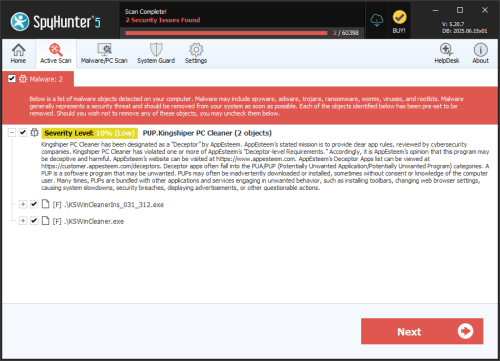
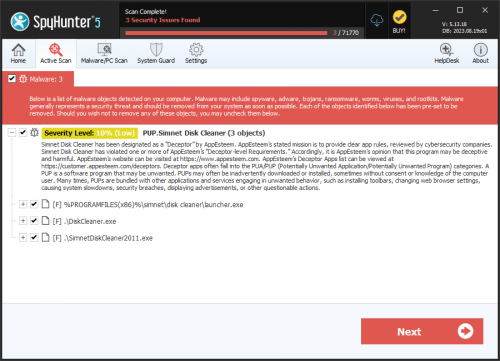
SpyHunter Detects & Remove PUP.Content Cleaner
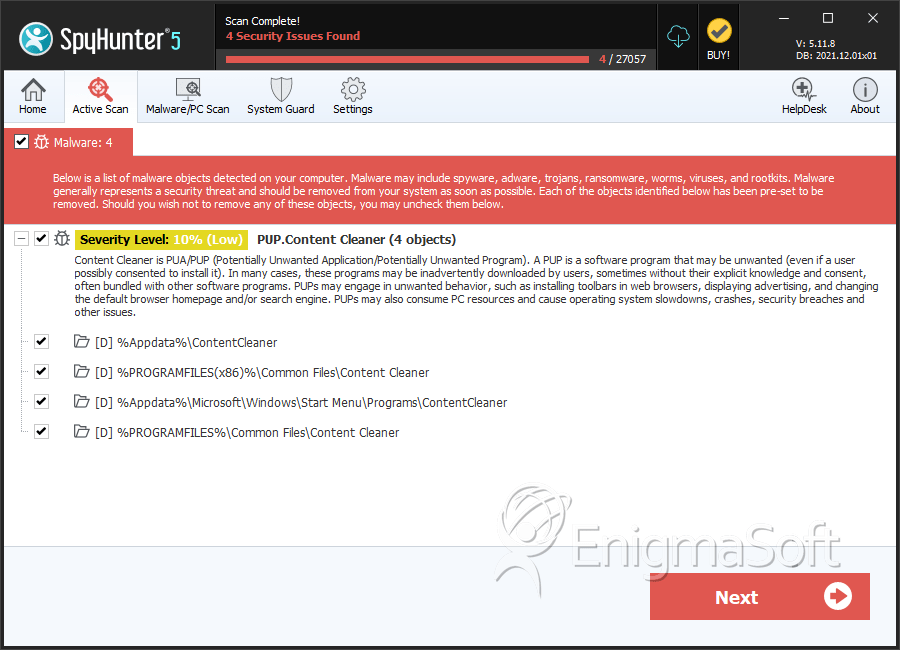
Directories
PUP.Content Cleaner may create the following directory or directories:
| %Appdata%\ContentCleaner |
| %Appdata%\Microsoft\Windows\Start Menu\Programs\ContentCleaner |
| %PROGRAMFILES%\Common Files\Content Cleaner |
| %PROGRAMFILES(x86)%\Common Files\Content Cleaner |