Metacrawler Toolbar
Threat Scorecard
EnigmaSoft Threat Scorecard
EnigmaSoft Threat Scorecards are assessment reports for different malware threats which have been collected and analyzed by our research team. EnigmaSoft Threat Scorecards evaluate and rank threats using several metrics including real-world and potential risk factors, trends, frequency, prevalence, and persistence. EnigmaSoft Threat Scorecards are updated regularly based on our research data and metrics and are useful for a wide range of computer users, from end users seeking solutions to remove malware from their systems to security experts analyzing threats.
EnigmaSoft Threat Scorecards display a variety of useful information, including:
Popularity Rank: The ranking of a particular threat in EnigmaSoft’s Threat Database.
Severity Level: The determined severity level of an object, represented numerically, based on our risk modeling process and research, as explained in our Threat Assessment Criteria.
Infected Computers: The number of confirmed and suspected cases of a particular threat detected on infected computers as reported by SpyHunter.
See also Threat Assessment Criteria.
| Popularity Rank: | 13,460 |
| Threat Level: | 50 % (Medium) |
| Infected Computers: | 17,621 |
| First Seen: | November 19, 2013 |
| Last Seen: | October 5, 2026 |
| OS(es) Affected: | Windows |
The detection of Metacrawler Toolbar on your system indicates a potential threat that requires immediate attention. This report aims to provide you with a comprehensive understanding of the issue and guide you through the removal process.
Table of Contents
What Is Metacrawler Toolbar?
Metacrawler Toolbar is identified as a Trojan-type threat, which means it is a type of malware that can disguise itself as legitimate software. Trojans are known for their ability to deceive users into installing them, often by bundling themselves with other programs or presenting themselves as useful tools. Once installed, they can cause a variety of problems, including data theft, system crashes, and the installation of additional malware.
How Metacrawler Toolbar Operates
Trojans like Metacrawler Toolbar typically operate by exploiting vulnerabilities in a system's security or by tricking users into granting them permissions they shouldn't have. They can be designed to perform a wide range of malicious activities, from monitoring and reporting user behavior to downloading and installing other types of malware. The specific operations of Metacrawler Toolbar can vary, but its primary goal is likely to compromise your system's security and potentially steal sensitive information.
Symptoms of Infection
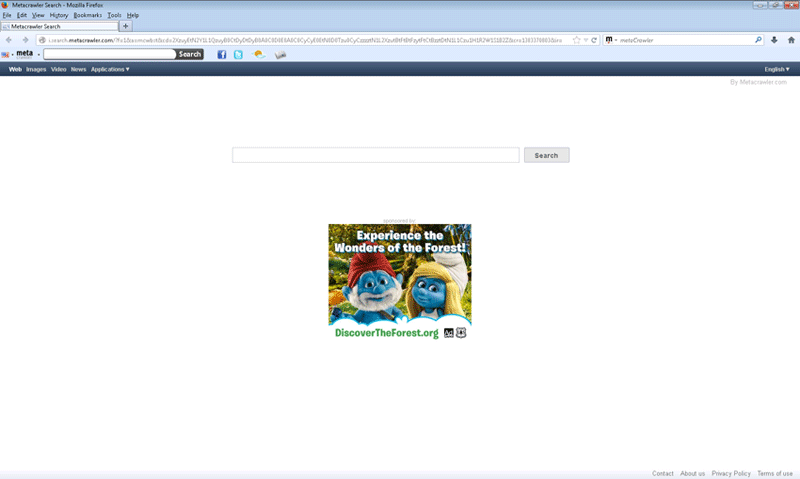
Identifying a Metacrawler Toolbar infection can be challenging, as Trojans are designed to be stealthy. However, some common symptoms of infection include unexpected changes to your browser settings, the appearance of unwanted toolbars or extensions, slow system performance, and frequent pop-ups or redirects to suspicious websites. If you've noticed any of these symptoms, it's essential to take action to remove the threat as soon as possible.
How to Remove Metacrawler Toolbar
- Enter Safe Mode with Networking: This will help prevent the malware from interfering with the removal process. To do this, restart your computer and press the key to access your boot menu (this key varies by manufacturer but is often F8, F12, or Del). Select Safe Mode with Networking and proceed to the next step.
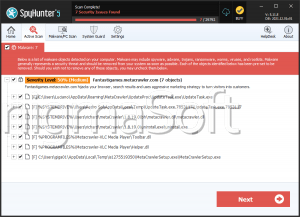
- Perform a Full Scan with a Reputable Tool: Use an anti-malware program like SpyHunter to scan your system for the Metacrawler Toolbar and any other potential threats. Make sure your chosen tool is updated with the latest definitions to ensure it can detect the most recent malware variants.
- Uninstall Suspicious Programs: Go through your list of installed programs and uninstall anything that seems suspicious or that you don't recognize. Be cautious, as some legitimate programs might have similar names to malware.
- Reset Your Browser Settings: If the Metacrawler Toolbar has affected your browser (such as Chrome, Firefox, or Edge), you may need to reset its settings to their defaults. This can usually be done through the browser's settings or options menu. Look for an option like "Reset browser settings" or "Refresh Firefox."
- Reboot and Re-scan: After completing the above steps, restart your computer in normal mode and perform another scan with your anti-malware tool to ensure that the Metacrawler Toolbar has been completely removed.
Conclusion
Removing the Metacrawler Toolbar from your system requires careful steps to ensure that all components of the malware are eliminated. By following the guidance provided in this report, you should be able to successfully remove the threat and restore your system's security. Remember, prevention is key: always be cautious when installing new software, keep your operating system and security software up to date, and regularly scan your system for malware to protect against future infections.
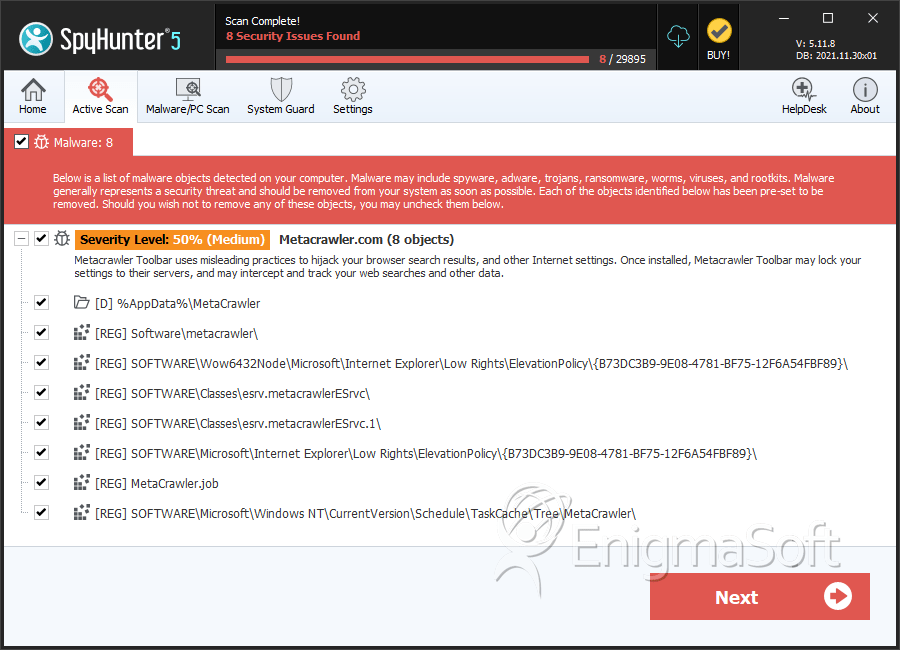
SpyHunter Detects & Remove Metacrawler Toolbar
File System Details
| # | File Name | MD5 |
Detections
Detections: The number of confirmed and suspected cases of a particular threat detected on
infected computers as reported by SpyHunter.
|
|---|---|---|---|
| 1. | UpdateTask.exe.1237992 | ab52bcb8d4e2a34c864b0e10c83422e7 | 4,406 |
| 2. | metacrawlersrv.exe | b719c85310f071cf8658e42f56f5da4e | 218 |
| 3. | 36090uninstall.exe | 2ed459e08d46163d3d98872e3b7bb44e | 179 |
| 4. | MetaCrawlerSetup.exe | eddcbf11a601b14f86e8122479dac218 | 12 |
| 5. | MetaCrawlermgr.exe | 3cfc2b9d0d58a9feda98d15d93d32ea3 | 2 |
| 6. | Toolbar.dll | c8546fb348967ce21345a7c6dc0495bc | 1 |
| 7. | UpdateTask.exe | 16184f8150828016abd535c8195a3f58 | 1 |
Registry Details
Directories
Metacrawler Toolbar may create the following directory or directories:
| %AppData%\MetaCrawler |
| %ProgramFiles%\metaCrawler |
| %ProgramFiles(x86)%\metaCrawler |
URLs
Metacrawler Toolbar may call the following URLs:
| MetaCrawler |
| http://www.metacrawler.com/serp? |