Windows Safety Maintenance
Threat Scorecard
EnigmaSoft Threat Scorecard
EnigmaSoft Threat Scorecards are assessment reports for different malware threats which have been collected and analyzed by our research team. EnigmaSoft Threat Scorecards evaluate and rank threats using several metrics including real-world and potential risk factors, trends, frequency, prevalence, and persistence. EnigmaSoft Threat Scorecards are updated regularly based on our research data and metrics and are useful for a wide range of computer users, from end users seeking solutions to remove malware from their systems to security experts analyzing threats.
EnigmaSoft Threat Scorecards display a variety of useful information, including:
Ranking: The ranking of a particular threat in EnigmaSoft’s Threat Database.
Severity Level: The determined severity level of an object, represented numerically, based on our risk modeling process and research, as explained in our Threat Assessment Criteria.
Infected Computers: The number of confirmed and suspected cases of a particular threat detected on infected computers as reported by SpyHunter.
See also Threat Assessment Criteria.
| Threat Level: | 100 % (High) |
| Infected Computers: | 14 |
| First Seen: | May 24, 2012 |
| OS(es) Affected: | Windows |
 Despite its name, Windows Safety Maintenance will not maintain your computer system's safety. This is because Windows Safety Maintenance is actually a malware infection thinly disguised as a legitimate security application. Therefore, it is important to identify Windows Safety Maintenance as a threat and to remove Windows Safety Maintenance from an infected computer system as soon as possible. The presence of Windows Safety Maintenance on a computer will usually indicate a severe malware infection on that computer. ESG malware researchers strongly recommend removing Windows Safety Maintenance with a trustworthy anti-malware program that is frequently updated. Not removing Windows Safety Maintenance can result in your sensitive data being leaked or your operating system being irreparably damaged.
Windows Safety Maintenance belongs to a kind of malware infection known as a rogue security program. Fake security applications like Windows Safety Maintenance use a variety of tactics to convince their victims that their computer system is severely infected with many nonexistent viruses and Trojans. They do this so that the victim will agree to purchase a useless 'full version' of the fake security program as a way to fix these manufactured threats. Windows Safety Maintenance does not limit itself to displaying annoying error messages and fake system scans, Windows Safety Maintenance will also wreak havoc on a computer system, changing system settings, causing browser redirects and causing the infected computer system to crash frequently. Worst of all, Windows Safety Maintenance is usually associated with a dangerous rootkit infection known as ZeroAccess. This rootkit component can make Windows Safety Maintenance removal problematic, often needing the intervention of a specialized anti-rootkit application.
Table of Contents
Windows Safety Maintenance and the FakeVimes Family of Malware
Windows Safety Maintenance belongs to a very large family of bogus security applications commonly known as FakeVimes. Rogue security programs in the FakeVimes family have infected computer systems since 2009. This means that most anti-malware programs can deal easily with these kinds of threats, provided that their associated rootkit infection can be removed first. Examples of FakeVimes rogue security applications include Virus Melt, Presto TuneUp, Fast Antivirus 2009, Extra Antivirus, Windows Security Suite, Smart Virus Eliminator, Packed.Generic.245, Volcano Security Suite, Windows Enterprise Suite, Enterprise Suite, Additional Guard, PC Live Guard, Live PC Care, Live Enterprise Suite, Security Antivirus, My Security Wall, CleanUp Antivirus, Smart Security, Windows Protection Suite, Windows Work Catalyst.
While 'registering' Windows Safety Maintenance will not remove this fake security program, you can still enter the registration number 0W000-000B0-00T00-E0020 in order to stop many of this fake security program's error messages and other irritating symptoms. However, removing Windows Safety Maintenance will still be necessary to keep your computer system safe.
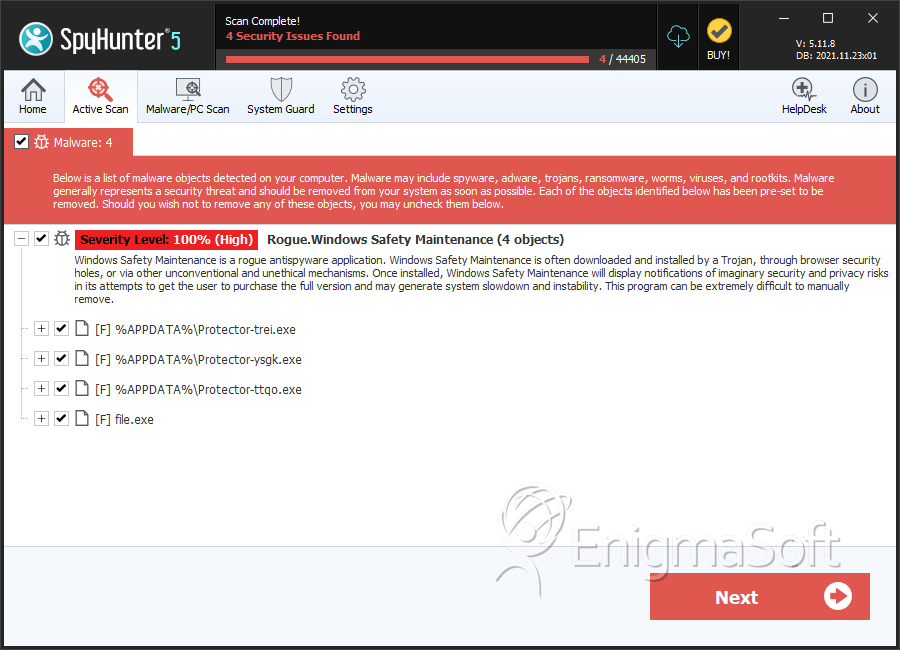
SpyHunter Detects & Remove Windows Safety Maintenance
Windows Safety Maintenance Video
Tip: Turn your sound ON and watch the video in Full Screen mode.

File System Details
| # | File Name | MD5 |
Detections
Detections: The number of confirmed and suspected cases of a particular threat detected on
infected computers as reported by SpyHunter.
|
|---|---|---|---|
| 1. | Protector-trei.exe | 0c23465333b236c6bba316fac9513290 | 9 |
| 2. | 08d9449c352d76ff73d32f3f7fbe683ca0b3558bffb8809cb10ccf915d10942e.exe | cb2a1efb9a03dd129169e6ecef5b8e7d | 4 |
| 3. | Protector-ttqo.exe | 796aa00839dbaf2184accbc24aefbba2 | 1 |
| 4. | %AppData%\Protector-{RANDOM 4 CHARACTERS}.exe | ||
| 5. | %AppData%\Protector-{RANDOM 3 CHARACTERS}.exe | ||
| 6. | %CommonAppData%\58ef5\SP98c.exe | ||
| 7. | %AppData%\NPSWF32.dll | ||
| 8. | %AppData%\Windows Safety Maintenance\ScanDisk_.exe | ||
| 9. | %Desktop%\Windows Safety Maintenance.lnk | ||
| 10. | %AppData%\Windows Safety Maintenance\Instructions.ini | ||
| 11. | %StartMenu%\Windows Safety Maintenance.lnk | ||
| 12. | %AppData%\Microsoft\Internet Explorer\Quick Launch\Windows Safety Maintenance.lnk | ||
| 13. | %CommonAppData%\SPUPCZPDET\SPABOIJT.cfg | ||
| 14. | %AppData%\result.db | ||
| 15. | %Programs%\Windows Safety Maintenance.lnk | ||
| 16. | %CommonAppData%\58ef5\SPT.ico | ||
| 17. | file.exe | 868c130259a35bf95f80c642de40cc45 | 0 |