|
|
Tweet |
Windows Proprietary Advisor Description
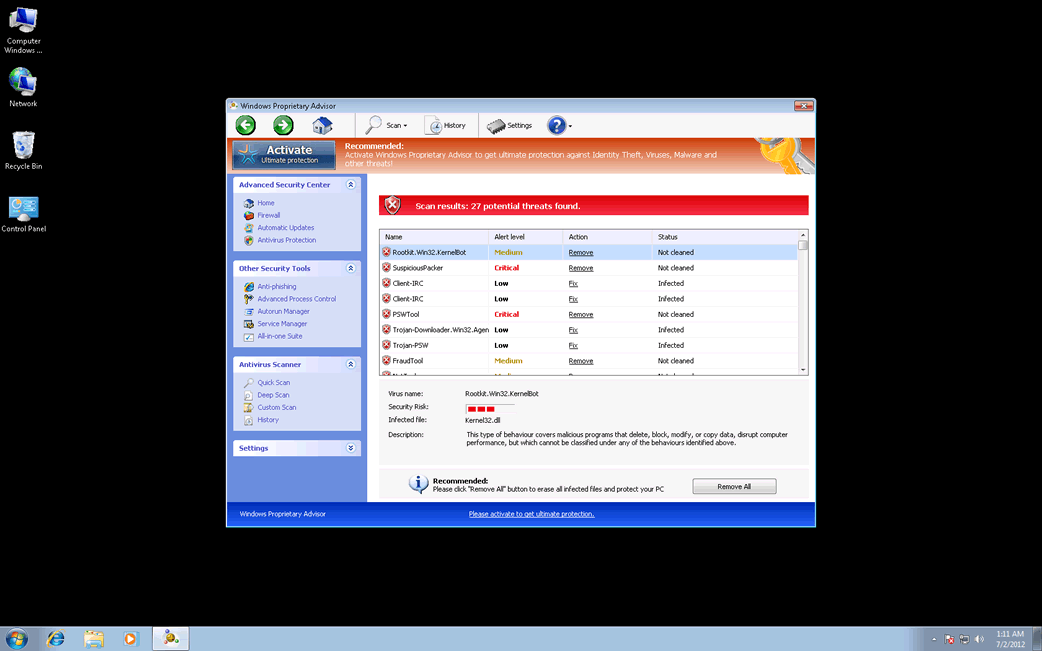
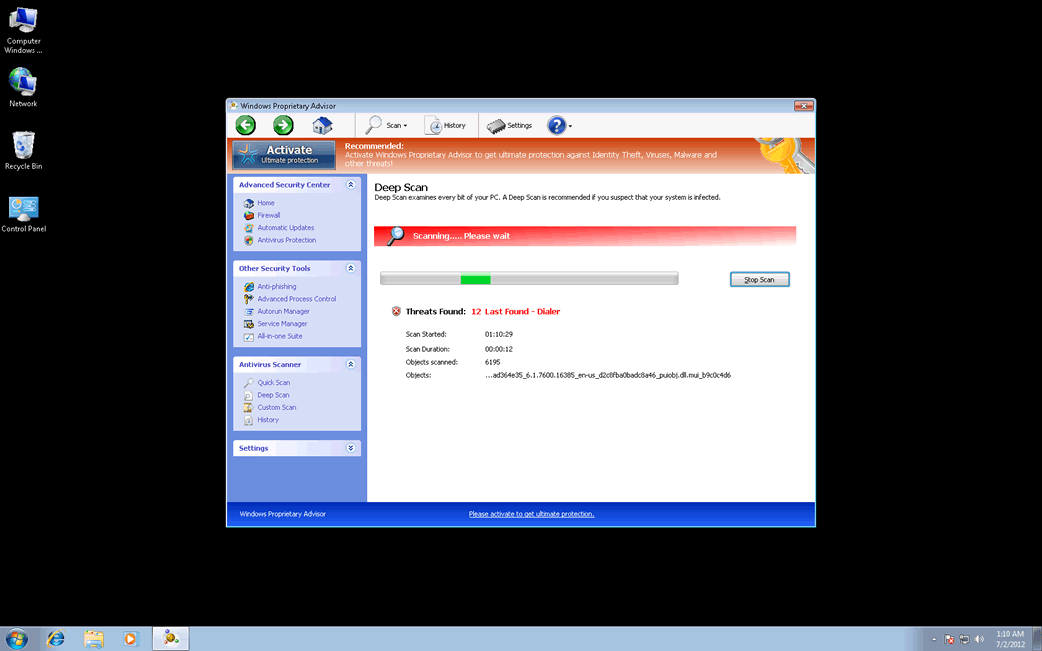
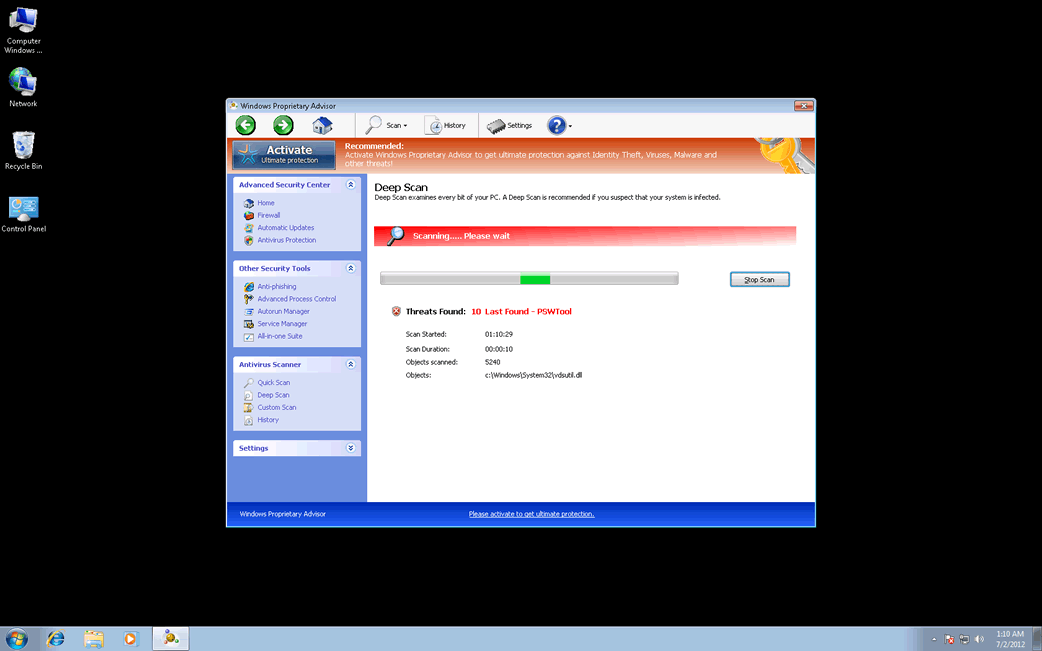
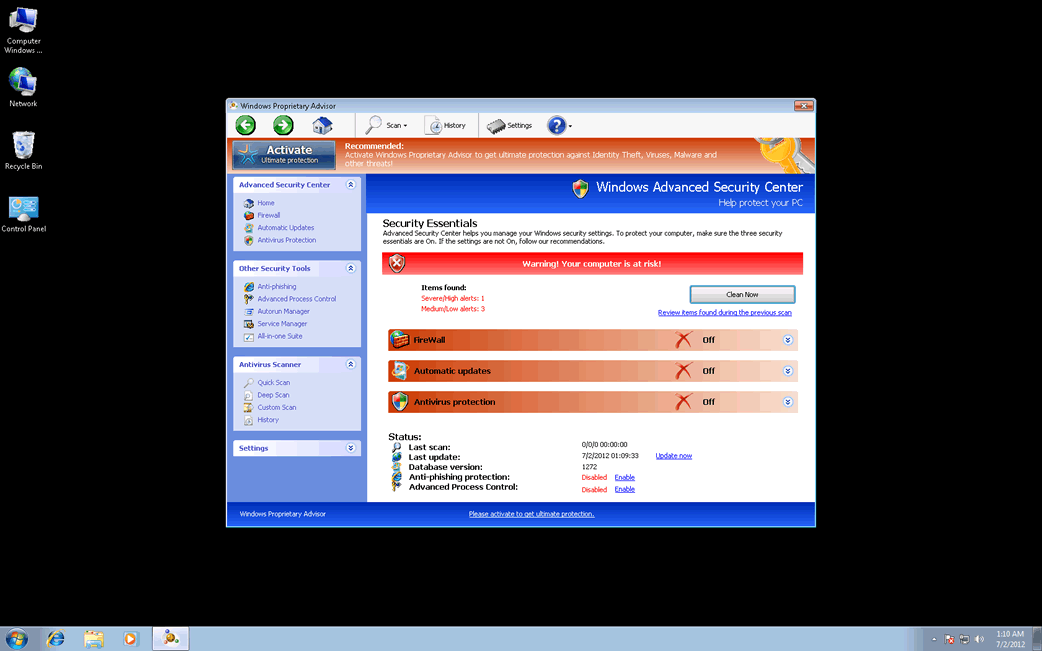
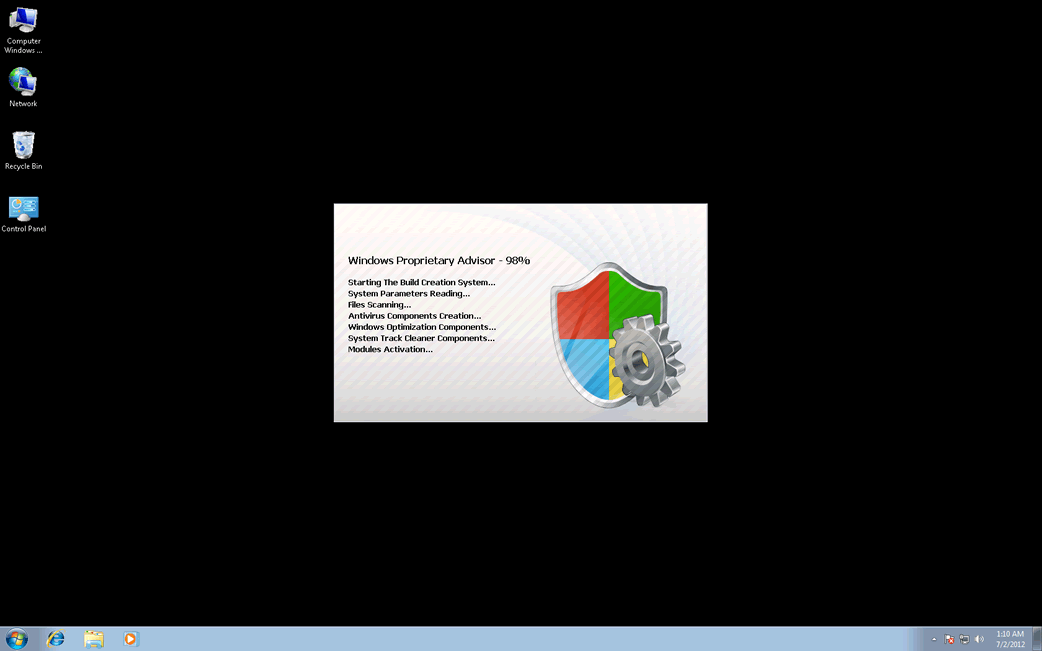
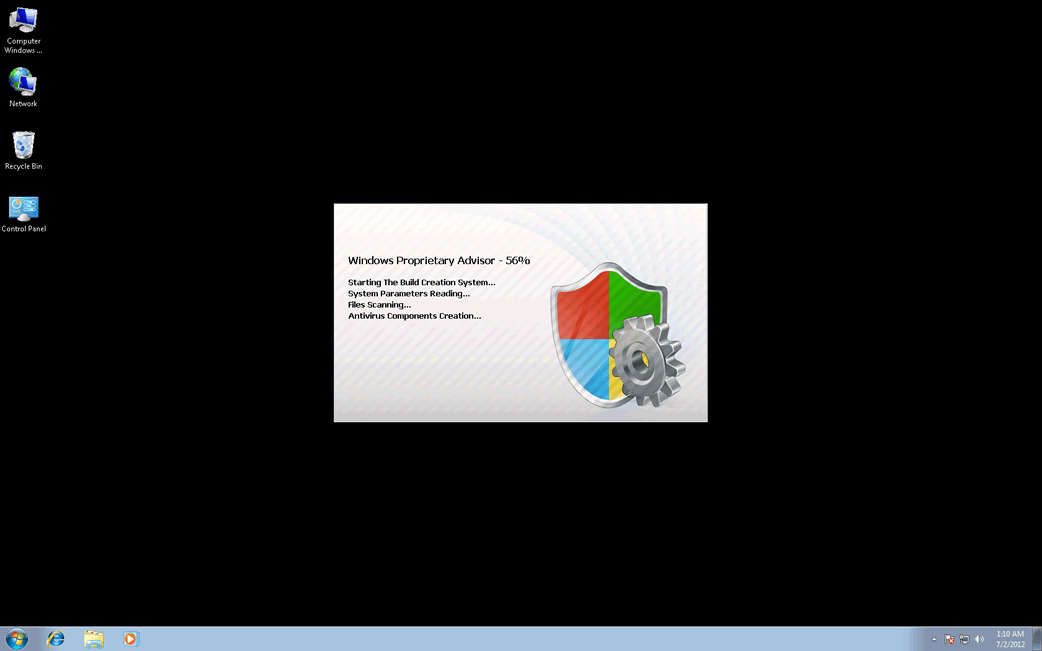
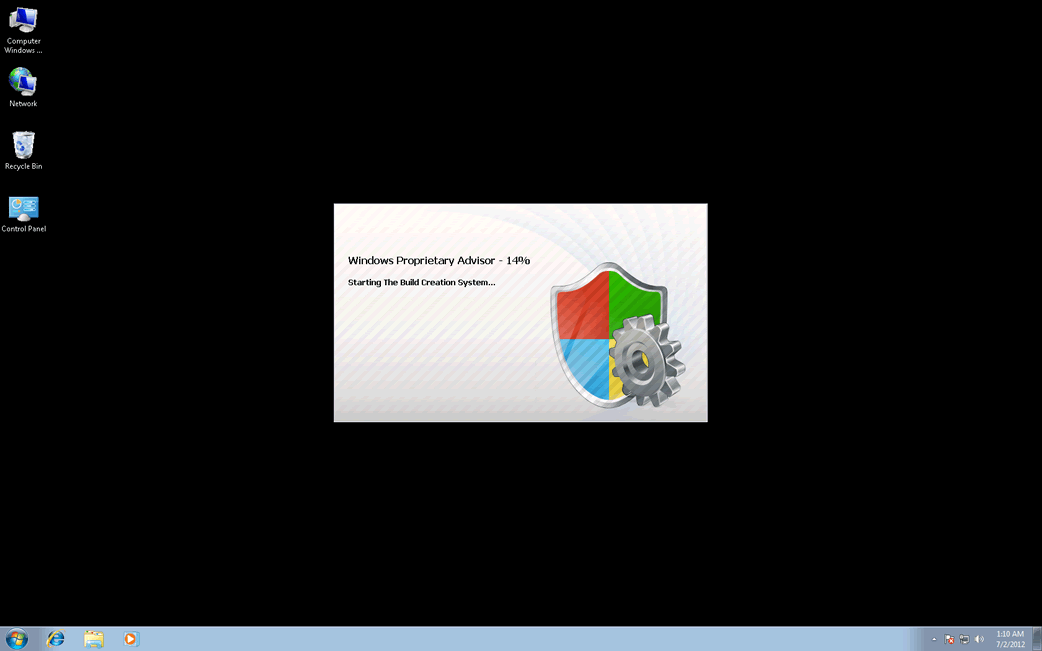
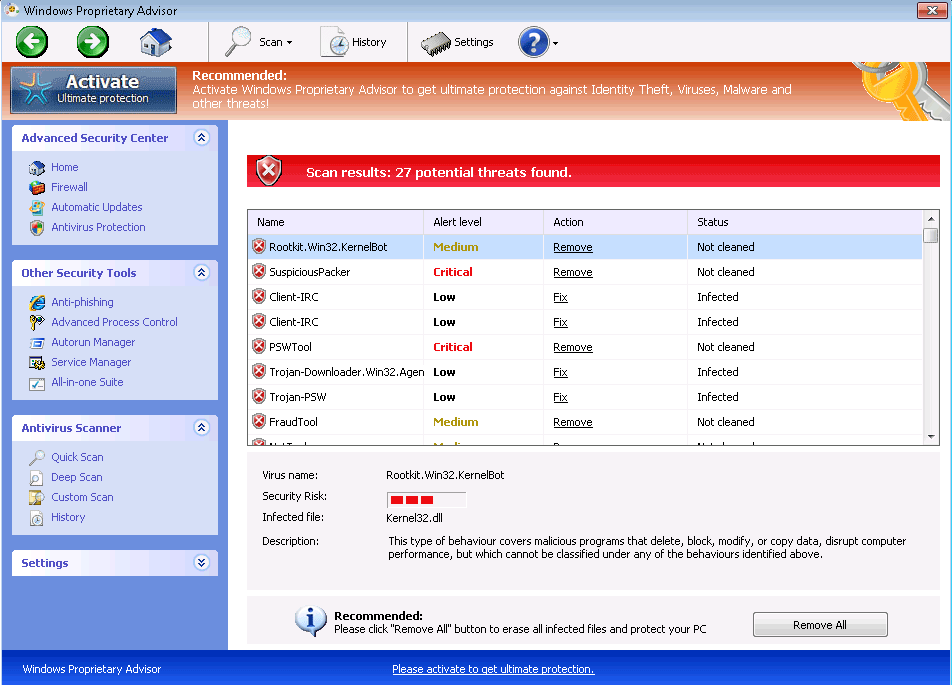
Since early 2012, ESG security analysts have observed a resurgence in malware infections related to the FakeVimes family of malware. This is probably due to the fact that criminals have started to bundle malware in the FakeVimes family with dangerous rootkits in the Sirefef family. Working together, these fake security programs are considerably more difficult to remove than rogue security programs belonging to previous versions of the FakeVimes family of malware. Windows Proprietary Advisor is one of the many bogus security tools released in 2012. Like its predecessors, Windows Proprietary Advisor will try to trick its victims that their machine is severely infected with malware in order to fool them into purchasing fake security applications.
The FakeVimes family of malware has been around since July of 2009 (at the very least), so there are dozens – if not hundreds – of clones of Windows Proprietary Advisor. They all tend to follow similar naming conventions and have evolved little since the first manifestation of this family of malware. However, the criminals behind the FakeVimes family of malware have evolved the social engineering tactics used to deliver these fake security programs, as well as bundling other malicious applications along with the rogue security program infection. This means that, over the years, FakeVimes-related infections have become increasingly more difficult to remove. Today, removing Windows Proprietary Advisor or any of its clones will usually require the use of a specialized anti-rootkit application in order to remove its associated rootkit component. Examples of clones of Windows Proprietary Advisor also released in 2012 include Windows Privacy Extension, Windows Malware Firewall and Windows Custom Management.
Dealing with a Windows Proprietary Advisor Infection
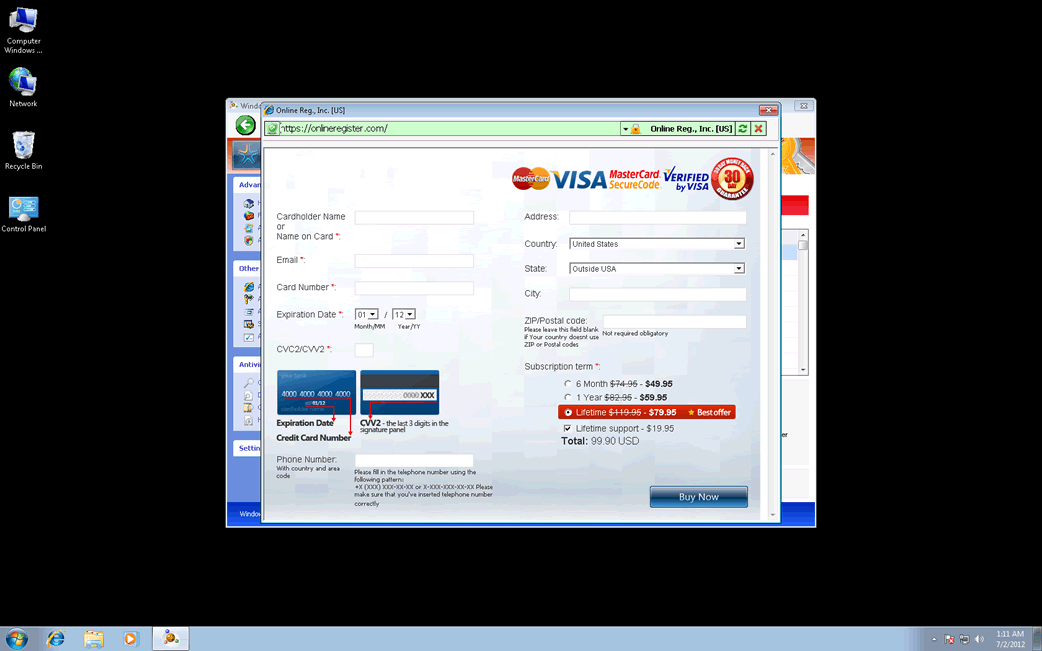
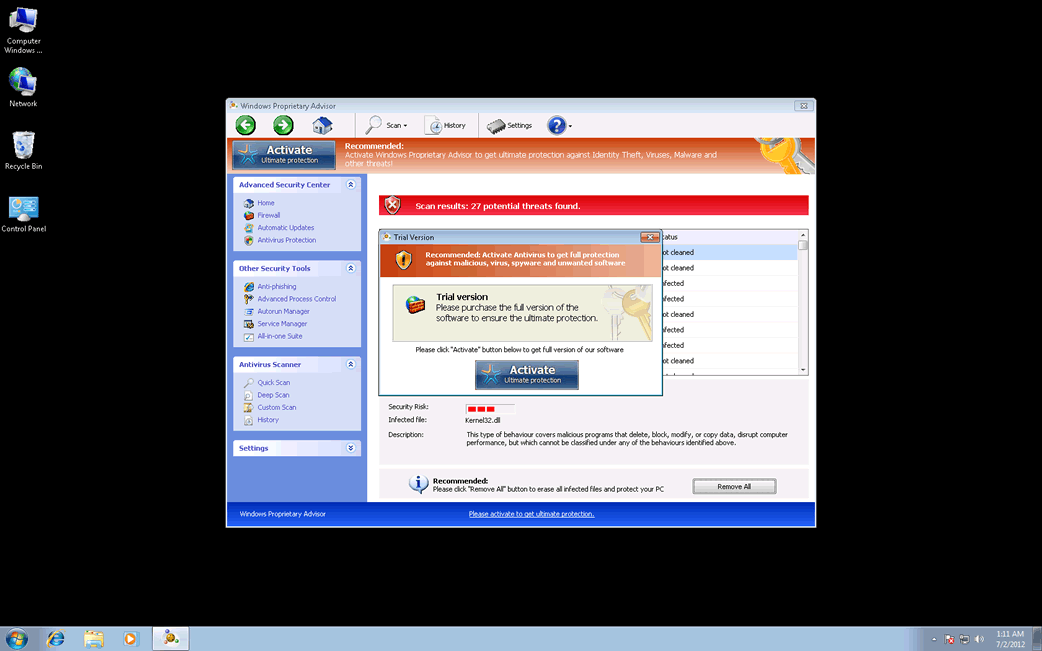
Windows Proprietary Advisor will try to convince you that you need to ‘upgrade’ to a supposed full version by purchasing a registration code. While entering this registration code will stop Windows Proprietary Advisor from causing many annoying symptoms on your computer system, the infection will remain on your computer system, potentially endangering your data. You can ‘register’ Windows Proprietary Advisor with the code 0W000-000B0-00T00-E0020. However, you should remove Windows Proprietary Advisor entirely with the help of reliable anti-spyware software to ensure that your machine is safe. To prevent future Windows Proprietary Advisor infections, ESG security analysts recommend using a strong anti-malware scanner and being careful when browsing the Internet.
Type: Rogue AntiSpyware Programs
How Can You Detect Windows Proprietary Advisor?
Download SpyHunter’s Detection Scanner
to Detect Windows Proprietary Advisor.
Can’t install SpyHunter? Click here to view possible causes of installation issues.
Windows Proprietary Advisor Technical Report
As new Windows Proprietary Advisor details are reported by our customers and findings from our Threat Research Center, we will update this section.
Fake message for Windows Proprietary Advisor:
The following fake error message(s) appears for Windows Proprietary Advisor:
Error
Keylogger activity detected. System information security is at risk.
It is recommended to activate protection and run a full system scan.
Error
Attempt to modify registry key entries detected. Registry entry analysis is recommended.
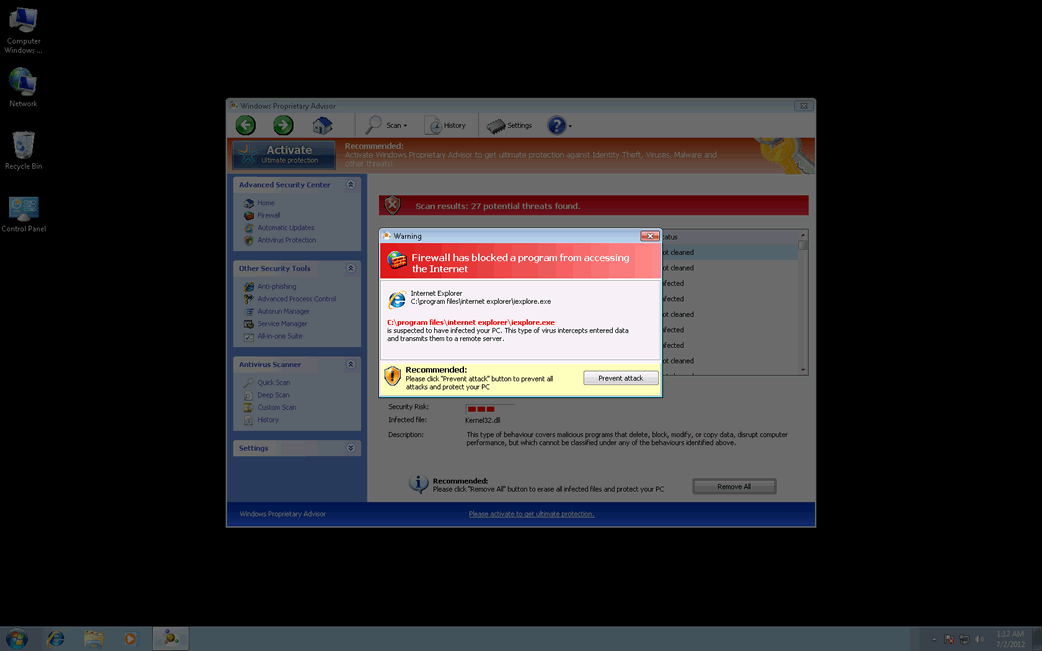
Warning
Firewall has blocked a program from accessing the Internet
C:program filesinternet exploreriexplore.exe
is suspected to have infected your PC. This type of virus intercepts entered data and transmits them to a remote server.
‘How Windows Proprietary Advisor Infects Your Computer’ Video
Windows Proprietary Advisor Removal Details
Windows Proprietary Advisor has typically the following processes in memory:
- %CommonAppData%\58ef5\SP98c.exe
- %AppData%\Windows Proprietary Advisor\ScanDisk_.exe
Windows Proprietary Advisor creates the following files in the system:
- %Desktop%\Windows Proprietary Advisor.lnk
- %CommonAppData%\SPUPCZPDET\SPABOIJT.cfg
- %AppData%\Microsoft\Internet Explorer\Quick Launch\Windows Proprietary Advisor.lnk
- %StartMenu%\Windows Proprietary Advisor.lnk
- %AppData%\Windows Proprietary Advisor\Instructions.ini
- %Programs%\Windows Proprietary Advisor.lnk
- %CommonAppData%\58ef5\SPT.ico
Windows Proprietary Advisor creates the following registry entries:
- HKEY_LOCAL_MACHINE\SOFTWARE\Microsoft\Windows NT\CurrentVersion\Image File Execution Options\AVCare.exe
- HKEY_LOCAL_MACHINE\SOFTWARE\Microsoft\Windows NT\CurrentVersion\Image File Execution Options\AluSchedulerSvc.exe\”Debugger” = “svchost.exe”
- HKEY_LOCAL_MACHINE\SOFTWARE\Microsoft\Windows NT\CurrentVersion\Image File Execution Options\AVENGINE.EXE
- HKEY_LOCAL_MACHINE\SOFTWARE\Microsoft\Windows NT\CurrentVersion\Image File Execution Options\AVWEBGRD.EXE\”Debugger” = “svchost.exe”
- HKEY_LOCAL_MACHINE\SOFTWARE\Microsoft\Windows NT\CurrentVersion\Image File Execution Options\AlphaAV
- HKEY_LOCAL_MACHINE\SOFTWARE\Microsoft\Windows NT\CurrentVersion\Image File Execution Options\Ad-Aware.exe\”Debugger” = “svchost.exe”
- HKEY_LOCAL_MACHINE\SOFTWARE\Microsoft\Windows NT\CurrentVersion\Image File Execution Options\AAWTray.exe\”Debugger” = “svchost.exe”
- HKEY_LOCAL_MACHINE\SOFTWARE\Microsoft\Windows NT\CurrentVersion\Image File Execution Options\AluSchedulerSvc.exe
- HKEY_LOCAL_MACHINE\SOFTWARE\Microsoft\Windows NT\CurrentVersion\Image File Execution Options\About.exe\”Debugger” = “svchost.exe”
- HKEY_LOCAL_MACHINE\SOFTWARE\Microsoft\Windows NT\CurrentVersion\Image File Execution Options\AVWEBGRD.EXE
- HKEY_LOCAL_MACHINE\SOFTWARE\Microsoft\Windows NT\CurrentVersion\Image File Execution Options\AlphaAV.exe\”Debugger” = “svchost.exe”
- HKEY_LOCAL_MACHINE\SOFTWARE\Microsoft\Windows NT\CurrentVersion\Image File Execution Options\Ad-Aware.exe
- HKEY_LOCAL_MACHINE\SOFTWARE\Microsoft\Windows NT\CurrentVersion\Image File Execution Options\AdwarePrj.exe\”Debugger” = “svchost.exe”
- HKEY_LOCAL_MACHINE\SOFTWARE\Microsoft\Windows NT\CurrentVersion\Image File Execution Options\AAWTray.exe
- HKEY_LOCAL_MACHINE\SOFTWARE\Microsoft\Windows NT\CurrentVersion\Image File Execution Options\AVCare.exe\”Debugger” = “svchost.exe”
- HKEY_LOCAL_MACHINE\SOFTWARE\Microsoft\Windows NT\CurrentVersion\Image File Execution Options\About.exe
- HKEY_LOCAL_MACHINE\SOFTWARE\Microsoft\Windows NT\CurrentVersion\Image File Execution Options\AVENGINE.EXE\”Debugger” = “svchost.exe”
- HKEY_LOCAL_MACHINE\SOFTWARE\Microsoft\Windows NT\CurrentVersion\Image File Execution Options\AlphaAV.exe
- HKEY_LOCAL_MACHINE\SOFTWARE\Microsoft\Windows NT\CurrentVersion\Image File Execution Options\AlphaAV\”Debugger” = “svchost.exe”
- HKEY_LOCAL_MACHINE\SOFTWARE\Microsoft\Windows NT\CurrentVersion\Image File Execution Options\AdwarePrj.exe
Important Article Disclaimer


Windows Proprietary Advisor
Leave a Comment
Note: Abusive comments are not allowed. Please do not post comments regarding technical support issues. ESG customers that have issues with SpyHunter should open a customer support ticket.