Data Recovery
Threat Scorecard
EnigmaSoft Threat Scorecard
EnigmaSoft Threat Scorecards are assessment reports for different malware threats which have been collected and analyzed by our research team. EnigmaSoft Threat Scorecards evaluate and rank threats using several metrics including real-world and potential risk factors, trends, frequency, prevalence, and persistence. EnigmaSoft Threat Scorecards are updated regularly based on our research data and metrics and are useful for a wide range of computer users, from end users seeking solutions to remove malware from their systems to security experts analyzing threats.
EnigmaSoft Threat Scorecards display a variety of useful information, including:
Ranking: The ranking of a particular threat in EnigmaSoft’s Threat Database.
Severity Level: The determined severity level of an object, represented numerically, based on our risk modeling process and research, as explained in our Threat Assessment Criteria.
Infected Computers: The number of confirmed and suspected cases of a particular threat detected on infected computers as reported by SpyHunter.
See also Threat Assessment Criteria.
| Ranking: | 18,714 |
| Threat Level: | 100 % (High) |
| Infected Computers: | 142 |
| First Seen: | September 14, 2011 |
| Last Seen: | February 21, 2024 |
| OS(es) Affected: | Windows |
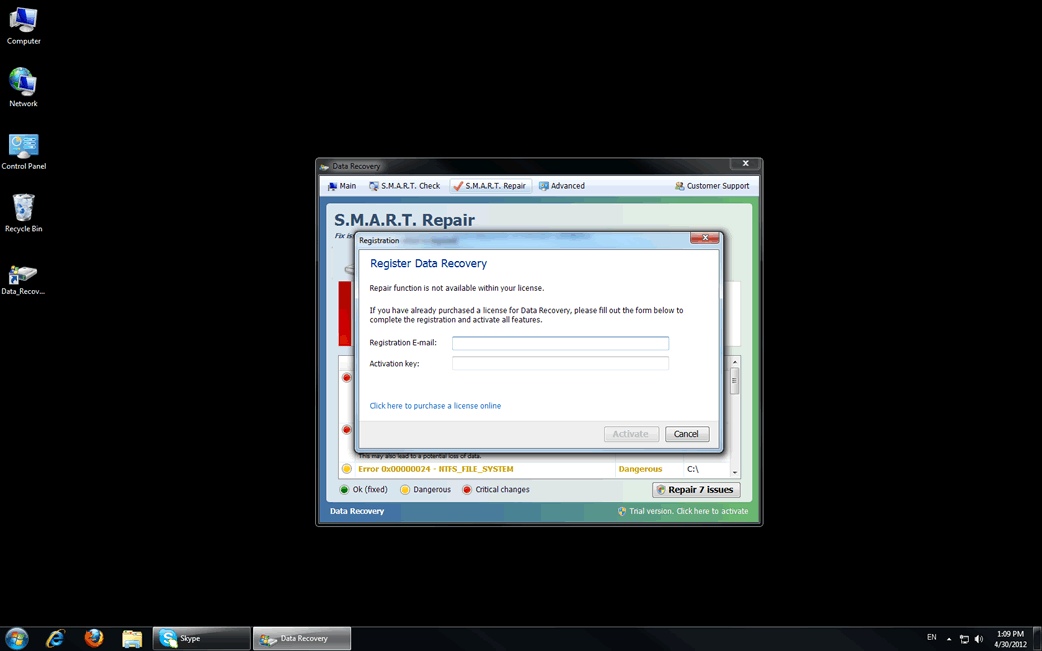
Data Recovery Image
Data Recovery is a fake defragmenter and system optimization tool. Programs like Data Recovery are known as rogueware and are part of a well-known computer scam. Date Recovery, in particular, belongs to a large family of rogue defragmenter tools that include such programs as PC Recovery and System Recovery. Despite being marketed as legitimate computer optimization applications, ESG security researchers have classified Data Recovery and its clones as malware. Data Recovery belongs to a particular category of malware that many PC security researchers refer to as scareware. Data Recovery receives this name because its main goal is to scare a computer user into paying a specific amount of money. Do not fall for the Data Recovery scam. If your computer system is displaying symptoms of a Data Recovery infection, ESG security researchers recommend using fully-updated anti-virus applications to destroy Data Recovery and any of its associated malware infections.
Data Recovery has a new clone called Smart Data Recovery. The interface for Smart Data Recovery has been updated from Data Recovery's but remains to have virtually the same misleading actions and claims of removing malware from a PC.
Table of Contents
Symptoms of a Data Recovery Infection
Data Recovery and Data Recovery's clones cause a number of specific problems on an infected computer system. Like all rogue defragmenters, these problems are meant to confuse and panic an inexperienced computer user. In a panicked state, a computer user is more likely to believe Data Recovery's claims that Data Recovery can fix the very problems Data Recovery is causing in the first place. ESG security researchers recommend being on the lookout for any of the following problems, and to take actions if your computer is displaying any of these symptoms:
- One of the main symptoms of a Data Recovery infection is Data Recovery's main screen, displayed upon start-up. A computer user cannot exit this screen until Data Recovery performs a fake computer scan. The results of this fake scan are always extremely negative. In fact, for experienced computer researchers, these results are laughable, often bordering on the impossible. For example, Data Recovery will often claim that the computer system cannot detect a hard drive, although the very fact that the computer system is working is proof to the contrary. These extremely negative results are not meant to be logical, but are actually meant to scare an inexperienced computer user into buying a useless "full version" of Data Recovery.
- Data Recovery displays a large number of error messages and fake security alerts insisting on the results of its fake scan, often blocking Data Recovery's victim from accessing files on the infected computer system.
- A computer infected with Data Recovery usually becomes extremely slow and unstable, often becoming "stuck" or crashing frequently.
Aliases
3 security vendors flagged this file as malicious.
| Anti-Virus Software | Detection |
|---|---|
| GData | Trojan.Generic.KD.357944 |
| NOD32 | a variant of Win32/Kryptik.SUA |
| McAfee | FakeAlert-SysDef.b |
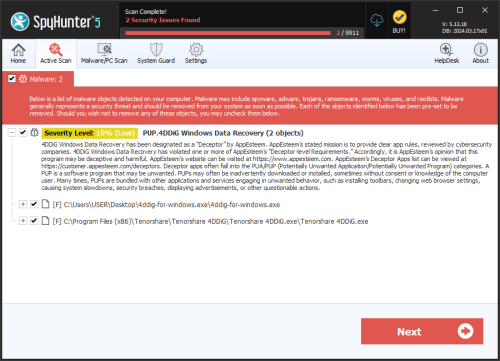
SpyHunter Detects & Remove Data Recovery
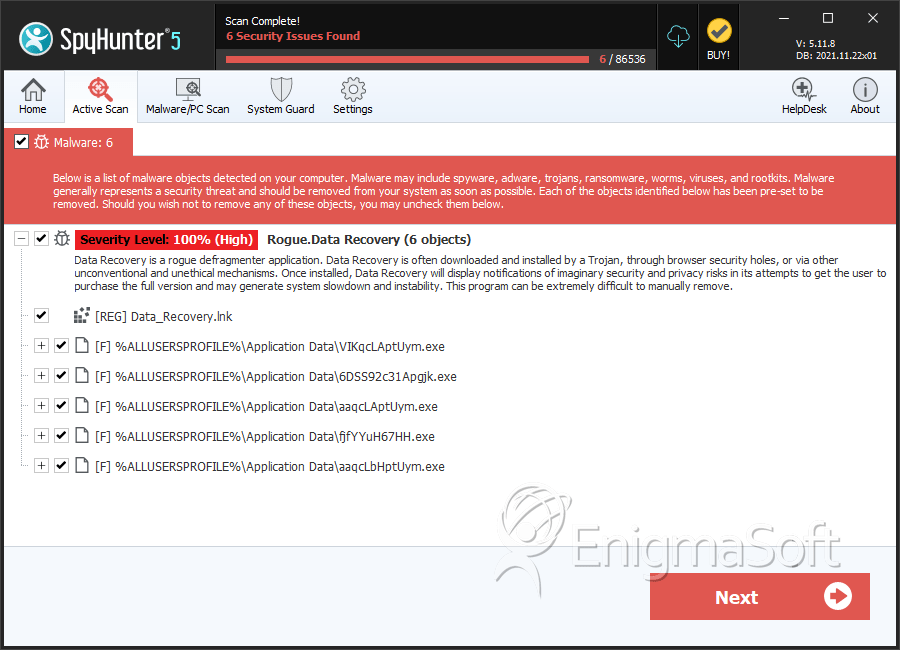
Data Recovery Video
Tip: Turn your sound ON and watch the video in Full Screen mode.
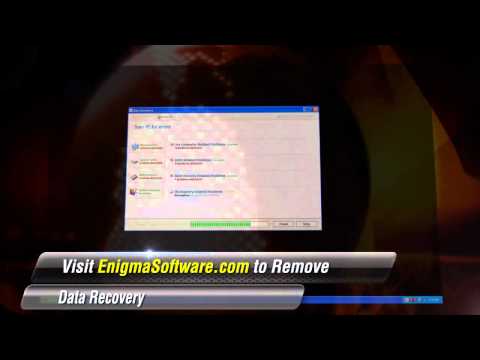
File System Details
| # | File Name | MD5 |
Detections
Detections: The number of confirmed and suspected cases of a particular threat detected on
infected computers as reported by SpyHunter.
|
|---|---|---|---|
| 1. | 6DSS92c31Apgjk.exe | bec326497bad81e5a9300739f62140c3 | 3 |
| 2. | aaqcLAptUym.exe | 7e166a87270a0b8754ec946fb7a16626 | 3 |
| 3. | VIKqcLAptUym.exe | 433cf46d22a951113884be6ca7b0a5e7 | 2 |
| 4. | %Documents and Settings%\[User Name]\Local Settings\Application Data\[RANDOM CHARACTERS].exe | ||
| 5. | %Documents and Settings%\[User Name]\Local Settings\Temp\smtmp\3 | ||
| 6. | %Documents and Settings%\[User Name]\Local Settings\Application Data\~ | ||
| 7. | %Documents and Settings%\[User Name]\Start Menu\\Programs\Data Recovery\Uninstall Data Recovery.lnk | ||
| 8. | %AppData%\Protector-[rnd].exe task | ||
| 9. | %Desktopdir%\Data_Recovery.lnk | ||
| 10. | %Documents and Settings%\[User Name]\Local Settings\Temp\smtmp\2 | ||
| 11. | %Documents and Settings%\[User Name]\Local Settings\Application Data\[RANDOM CHARACTERS] | ||
| 12. | %Documents and Settings%\[User Name]\Start Menu\\Programs\Data Recovery\Data Recovery.lnk | ||
| 13. | %Documents and Settings%\[User Name]\Local Settings\Temp\smtmp\ | ||
| 14. | %AppData%\Microsoft\Internet Explorer\Quick Launch\Data_Recovery.lnk | ||
| 15. | %Programs%\Data Recovery\Uninstall Data Recovery.lnk | ||
| 16. | %Documents and Settings%\[User Name]\Local Settings\Temp\smtmp\1 | ||
| 17. | %Documents and Settings%\[User Name]\Local Settings\Temp\smtmp\4 | ||
| 18. | %Documents and Settings%\[User Name]\Start Menu\\Programs\Data Recovery\ | ||
| 19. | %Documents and Settings%\[User Name]\Desktop\Data Recovery.lnk | ||
| 20. | %AppData%\Protector-[rnd].exe reg | ||
| 21. | %Programs%\Data Recovery\Data Recovery.lnk | ||
| 22. | fjfYYuH67HH.exe | 3cbccf2b1deb57b125069258c48abf7a | 0 |
| 23. | aaqcLbHptUym.exe | c9eccf753d782b5427eb0e57c7e651c6 | 0 |




Submit Comment
Please DO NOT use this comment system for support or billing questions. For SpyHunter technical support requests, please contact our technical support team directly by opening a customer support ticket via your SpyHunter. For billing issues, please refer to our "Billing Questions or Problems?" page. For general inquiries (complaints, legal, press, marketing, copyright), visit our "Inquiries and Feedback" page.