Wind Optimizer

GoldSparrow By GoldSparrow in Rogue Anti-Spyware Program | 103 views
Rate it:
1 Star2 Stars3 Stars4 Stars5 Stars (No Ratings Yet)
Loading ... Loading ...

The purpose of this “Wind Optimizer” article is to educate users on how to identify and remove Wind Optimizer. This guide will be updated as more information becomes available. If you have any information about Wind Optimizer or you would like to share your experience dealing with Wind Optimizer, we encourage you to post your comments. If you find this article useful and wish to conveniently view our recently added or updated articles, subscribe to our RSS feed.

Do you have Wind Optimizer?

Wind Optimizer Speedy Detection Test: Click here to run SpyHunter’s Scanner to check for Wind Optimizer on your PC.

Wind Optimizer Description


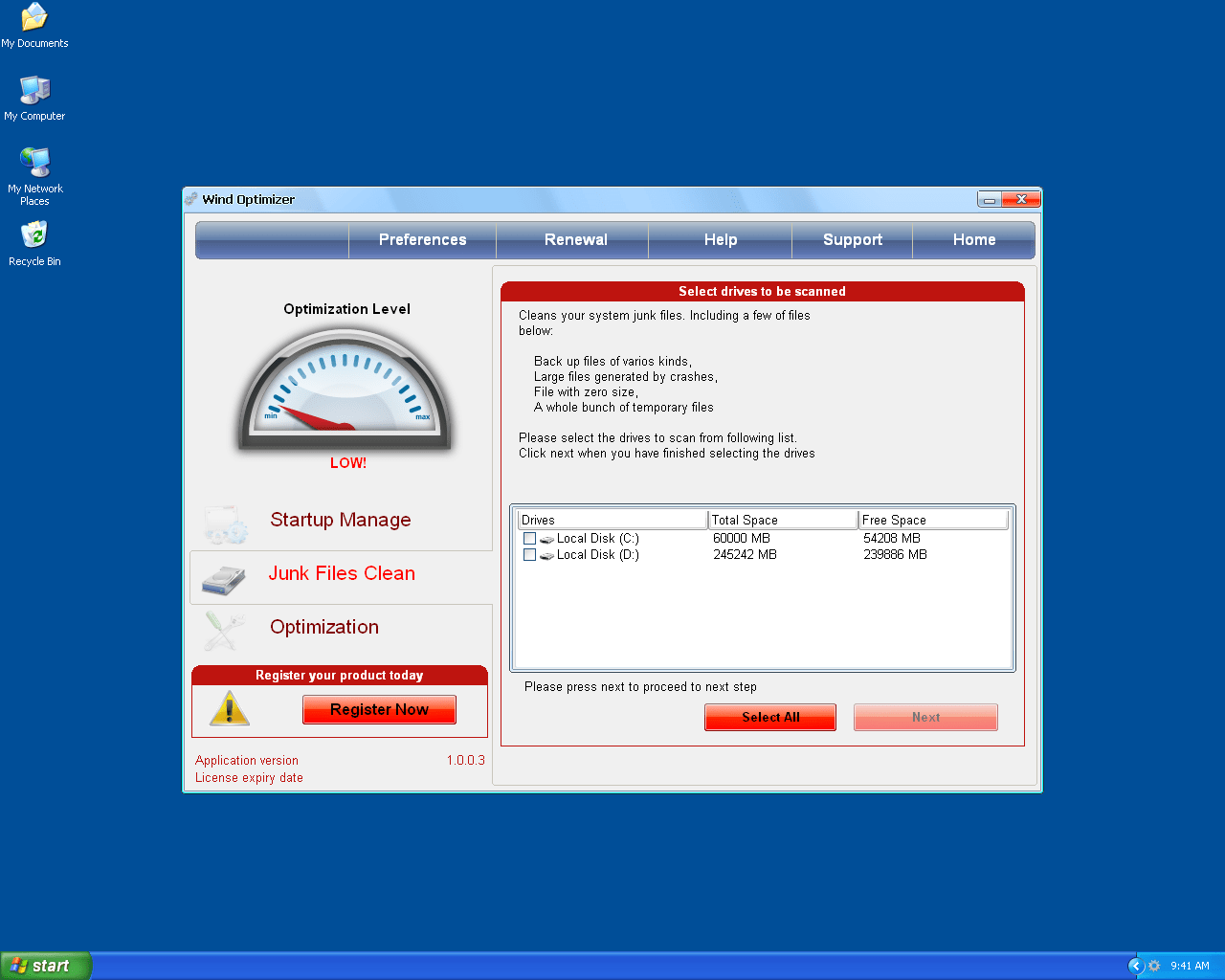
Image Screenshot

[+] Click Image to Enlarge


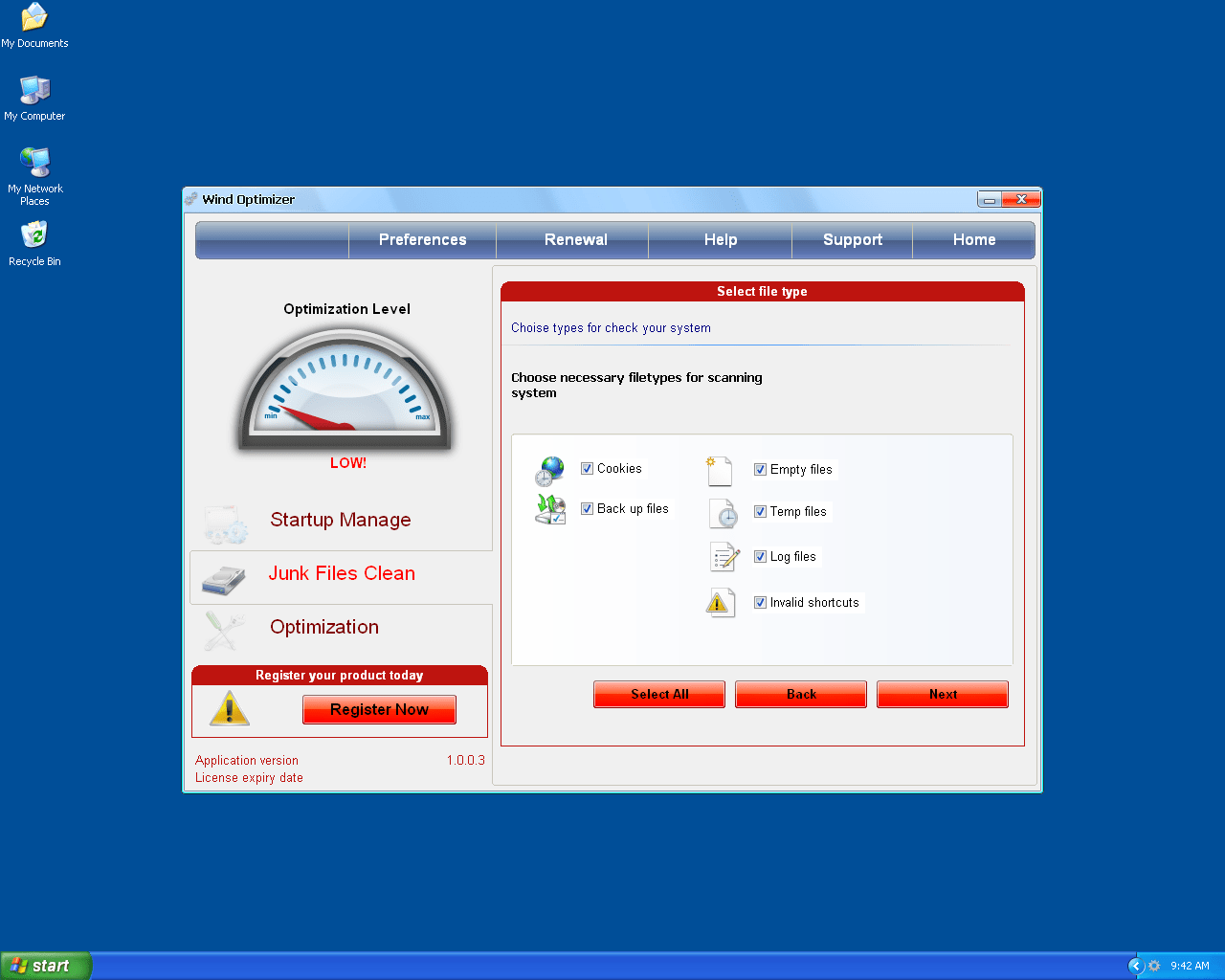
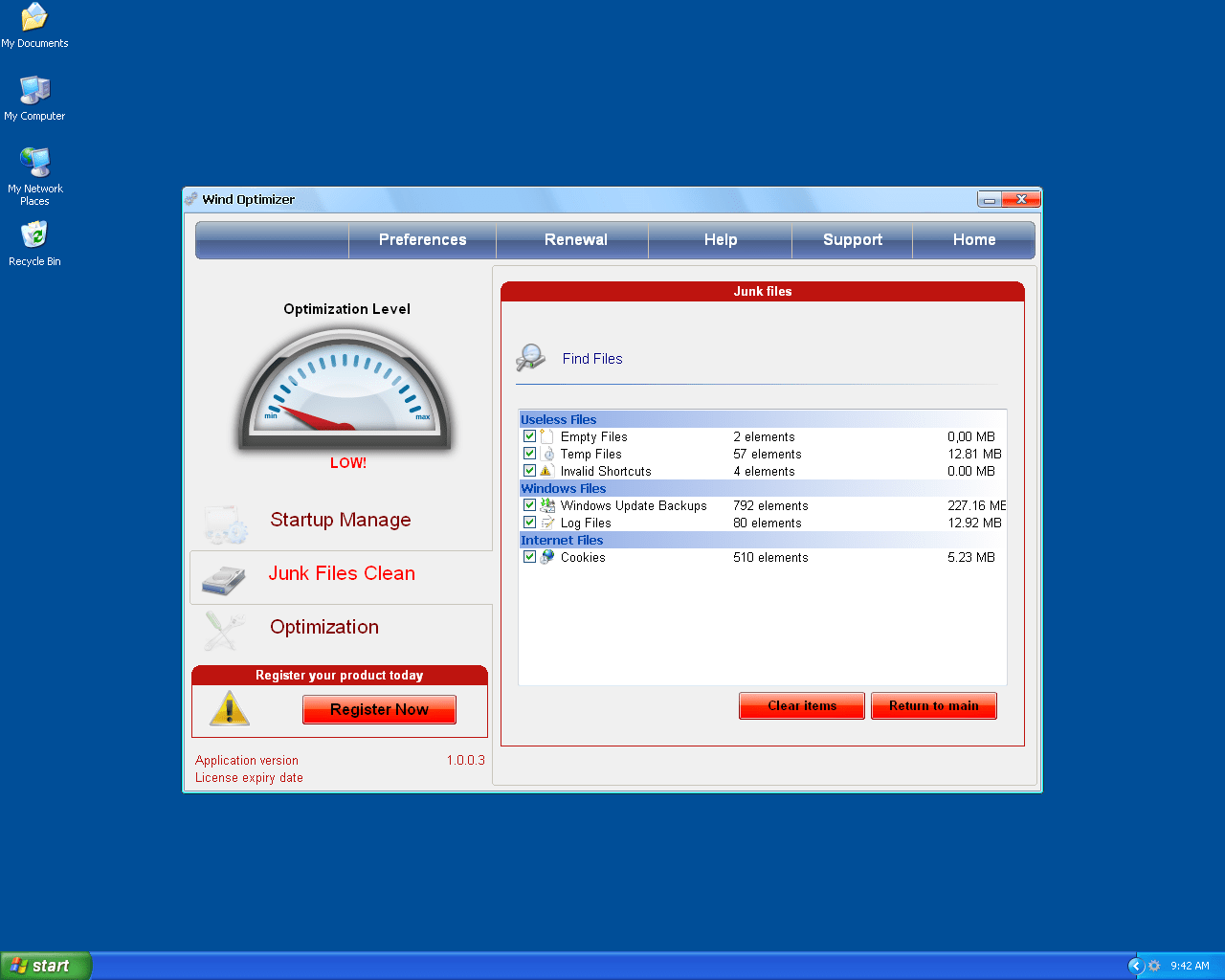
Wind Optimizer is a rogue Windows optimization software from the same developers as Personal Antivirus, the rogue anti-spyware application. Once installed, Wind Optimizer will be configured to run automatically when Windows starts up. Wind Optimizer will prompt the user to scan the computer. This fake scan typically reports false infection results or grossly exaggerated system problems. It will then be stated that in order to help repair or remove these issues, the user must purchase the Wind Optimizer program.
Type: Misleading Product


Important Wind Optimizer Notice:

important disclaimer

Disclaimer


Start of page

Detect Wind Optimizer Using SpyHunter

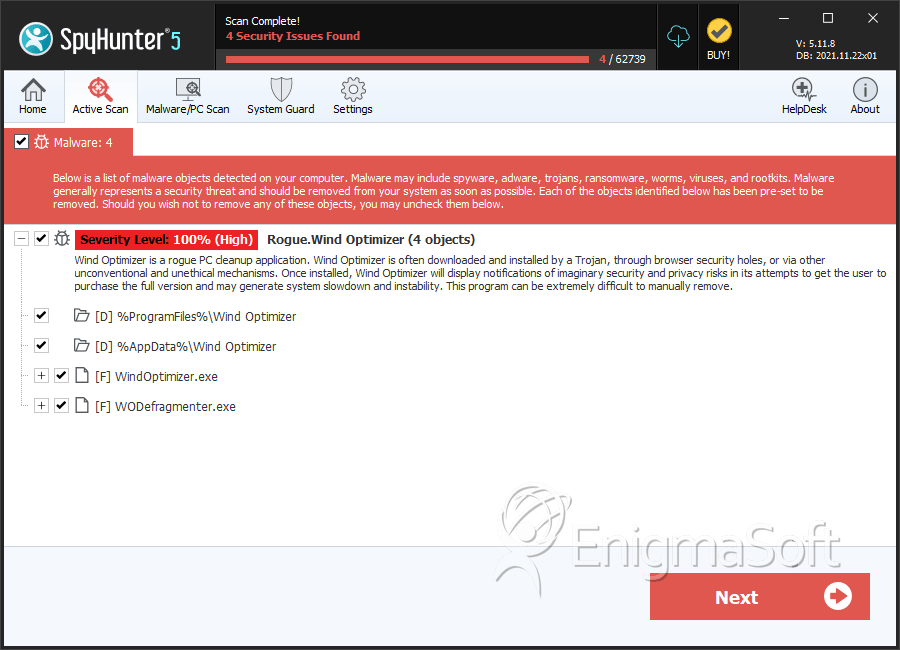
The detection of Wind Optimizer may be a difficult process and its removal may prove to be even more problematic, especially if it’s done without the assisstance of a removal tool. If you use a spyware removal tool such as SpyHunter, you can have SpyHunter automatically detect the files of Wind Optimizer on your PC. Why you should try SpyHunter’s Detection Scanner.

To safely detect Wind Optimizer, follow the instructions below:

Download SpyHunter’s Detection Scanner *
to Detect Wind Optimizer.

  1. Once you download SpyHunter’s Detection Scanner, select “Start Scan” to run a full system scan to search for Wind Optimizer and any other security threat that may be on your PC.
  2. Once SpyHunter has detected Wind Optimizer, you will need to purchase SpyHunter to continue on to the removal process.
  3. To complete the cleaning process, reboot your computer and run SpyHunter again to check for any remaining Wind Optimizer infections.

* SpyHunter’s Detection Scanner only allows you to detect Wind Optimizer on your PC. In order to remove Wind Optimizer, you need to purchase the full version of SpyHunter. If SpyHunter is not able to remove Wind Optimizer, SpyHunter’s Spyware HelpDesk can generate free custom fixes tailored for your PC. The full version of SpyHunter also provides real-time protection with daily definition updates to keep your PC on top of the latest security trends.

Start of page

Still Can’t Remove Wind Optimizer?

Exclusive Offer for SpyHunter Customers: FREE Custom Fixes!
Have SpyHunter’s Spyware HelpDesk create FREE custom fixes tailored to your PC!

If SpyHunter’s scanning process is unable to detect Wind Optimizer threat, SpyHunter customers have the option to generate a free diagnostic report to receive a custom fix for their problem using SpyHunter’s built in Spyware HelpDesk tool.

Spyware HelpDesk is both a service and a tool which allows our technicians to generate custom fixes specific to your PC. These custom fixes are transmitted to your SpyHunter utility which will disable and eradicate your problem completely off your PC. In order to better understand the process involved in generating custom fixes with SpyHunter’s Spyware HelpDesk, read how to use SpyHunter’s Spyware HelpDesk to create a custom fix for Wind Optimizer.

Some types of threats hide pieces of code from Windows, install additional components, and others have polymorphic capabilities to make removal harder. You can read the various scenarios as to why you can’t remove Wind Optimizer with SpyHunter or manually. With SpyHunter’s Spyware Helpdesk, you’ll be able have a custom fix that is specific to your spyware infection on your PC.

Start of page

Wind Optimizer Anatomy

As new Wind Optimizer details are reported by our customers and findings from our Threat Research Center, we will update this section.

Wind Optimizer Solution: With SpyHunter you can remedy Wind Optimizer in one simple press of a button. We recommend you download SpyHunter’s Spyware Detection Tool to safely detect Wind Optimizer.

MD5 Details of Wind Optimizer Files

The following Wind Optimizer files with its MD5s were created in the system:

File Name File Size MD5
WindOptimizer.exe 5528064 a6d77823d5005ad034ed7ac85f958f36
WODefragmenter.exe 83456 ea884d0d03e9436f9505befa96eb6d37

Start of page

Wind Optimizer Installation Process

Listed below are files needed for the installation of Wind Optimizer. You can use this information to manually search and remove Wind Optimizer from your PC.

Use Caution! Some technical expertise is needed. Manual removal of Wind Optimizer is a delicate procedure and does not guarantee complete removal. It is strongly advised that you backup your PC before you attempt to manually remove Wind Optimizer. ESG is not responsible for any damage to your computer resulting in any way from your use of this Wind Optimizer installation process.

If you are still having problems with Wind Optimizer, we recommend you download SpyHunter’s Spyware Detection Tool to safely detect Wind Optimizer. SpyHunter can facilitate the process of detecting and ultimately removing the unwanted files without having to deal with sensitive areas within your system.

If SpyHunter does not fully fix your problem, there may be many reasons as to its inability to remove the unwanted files. With SpyHunter’s Spyware HelpDesk, as a custom-automated-fix tool, you can achieve complete removal.

On the Wind Optimizer files listed below, you will find that some files may have environment variables (ex. “%Program Files%”). Read more on “Environment Variables List” for information on what each environment variable means.

Remove Wind Optimizer directories, paths or folders

When Wind Optimizer is executed, it creates the following directories, paths or folders:
Find out how to remove Wind Optimizer directories, paths or folders

  • %ProgramFiles%\Wind Optimizer
  • %AllUsersProfile%\Start Menu\Programs\Wind Optimizer
  • %AppData%\Wind Optimizer
Stop Wind Optimizer processes

Wind Optimizer creates the following cookies:
Find out how to remove Wind Optimizer processes

  • c:\Program Files\Wind Optimizer\WindOptimizer.exe
  • WODefragmenter.exe
  • c:\Program Files\Wind Optimizer\unins000.exe
  • WindOptimizer.exe
  • c:\Program Files\Wind Optimizer\Contig.exe
  • c:\Program Files\Wind Optimizer\WODefragmenter.exe
Remove other malicious Wind Optimizer files

The following Wind Optimizer files are created:
Find out how to remove Wind Optimizer malicious files

  • c:\Documents and Settings\All Users\Start Menu\Programs\Wind Optimizer\Uninstall Wind Optimizer.lnk
  • %UserProfile%\Application Data\Wind Optimizer
  • %UserProfile%\Application Data\Wind Optimizer\db\Settings.ini
  • %UserProfile%\Desktop\WOSetup.tmp.txt
  • c:\Program Files\Wind Optimizer\Contig.exe
  • c:\Program Files\Wind Optimizer\unins000.dat
  • c:\Program Files\Wind Optimizer\vista.manifest
  • c:\Program Files\Wind Optimizer\WO_install.iss
  • c:\Program Files\Wind Optimizer\WOIsnce.db
  • WindOptimizer.exe
  • Wind Optimizer Home Page.lnk
  • c:\Documents and Settings\All Users\Start Menu\Programs\Wind Optimizer\Purchase License.lnk
  • c:\Documents and Settings\All Users\Start Menu\Programs\Wind Optimizer\Wind Optimizer.lnk
  • %UserProfile%\Application Data\Wind Optimizer\db
  • %UserProfile%\Desktop\WOSetup.exe.txt
  • c:\Program Files\Wind Optimizer\activate.ico
  • c:\Program Files\Wind Optimizer\log_09062009.wlg
  • c:\Program Files\Wind Optimizer\uninstall.ico
  • c:\Program Files\Wind Optimizer\WindOptimizer.exe
  • c:\Program Files\Wind Optimizer\WODefragmenter.exe
  • Wind Optimizer
  • Uninstall Wind Optimizer.lnk
  • c:\Documents and Settings\All Users\Start Menu\Programs\Wind Optimizer
  • c:\Documents and Settings\All Users\Start Menu\Programs\Wind Optimizer\Wind Optimizer Home Page.lnk
  • %UserProfile%\Application Data\Wind Optimizer\updateloadlist.ini
  • %UserProfile%\Application Data\Wind Optimizer\db\Urls.inf
  • c:\Program Files\Wind Optimizer
  • c:\Program Files\Wind Optimizer\Explorer.ico
  • c:\Program Files\Wind Optimizer\unins000.exe
  • c:\Program Files\Wind Optimizer\vista.res
  • c:\Program Files\Wind Optimizer\WO_install.new.iss
  • c:\Program Files\Wind Optimizer\db
  • WODefragmenter.exe
  • Wind Optimizer.lnk
Wind Optimizer creates the following registry entry so that it executes whenever Windows starts:
  • HKEY_CURRENT_USER\Software\Microsoft\Windows\CurrentVersion\Run “Wind Optimizer”
The following registry keys are leftover entries which may not affect the system:

Note: In some cases, leftover entries may cause the system to load and perform slower depending on the amount of leftover entries, such as icons in add/remove programs windows, etc.

  • HKEY_LOCAL_MACHINE\SOFTWARE\Microsoft\Windows\CurrentVersion\Uninstall\Wind Optimizer_is1
Remove other registry keys created by Wind Optimizer

Wind Optimizer creates the following registry keys:
Find out how to remove Wind Optimizer registry keys

  • HKEY_LOCAL_MACHINE\SOFTWARE\Microsoft\Security Center “AutoUpdateDisableNotify”
  • HKEY_CURRENT_USER\Software\Microsoft\Windows\CurrentVersion\Run “Wind Optimizer”
  • HKEY_LOCAL_MACHINE\SOFTWARE\Microsoft\Security Center “UacDisableNotify”
  • HKEY_LOCAL_MACHINE\SOFTWARE\Microsoft\Windows\CurrentVersion\Uninstall\Wind Optimizer_is1
  • HKEY_LOCAL_MACHINE\SOFTWARE\Microsoft\Security Center “InternetSettingsDisableNotify”

Important Article Disclaimer

article disclaimer

article disclaimer
Start of page


ESG Support Center

Share and Enjoy: These icons link to social bookmarking sites where readers can share and discover new web pages.
  • Digg
  • del.icio.us
  • Furl
  • StumbleUpon
  • Technorati
  • YahooMyWeb
This entry was posted on 06/10/09 and is filed under Rogue Anti-Spyware Program. You can follow any responses to this entry through the RSS 2.0 feed. You can leave a response, or trackback from your own site.

Leave a Comment

Note: Abusive comments are not allowed. Please do not post comments regarding technical support issues. ESG customers that have issues with SpyHunter should open a customer support ticket.

*
To prove you're a person (not a spam script), type the security word shown in the picture. Click on the picture to hear an audio file of the word.
Click to hear an audio file of the anti-spam word

Track Malware Around the World

Poll

How much money have you spent trying to rid your PC of spyware?
View Results
Follow Us on Twitter

Archives

Home Sitemap RSS Feed Privacy Policy End User License Agreement Additional Terms and Conditions
Copyright 2003-2010. Enigma Software Group USA, LLC. All Rights Reserved.