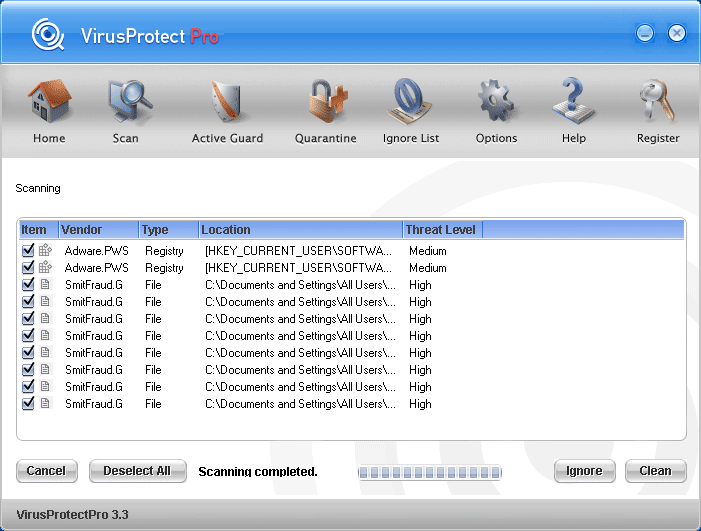
VirusProtect 3.8

Domesticus By Domesticus in Rogue Anti-Spyware Program | 69 views
Rate it:
1 Star2 Stars3 Stars4 Stars5 Stars (No Ratings Yet)
Loading ... Loading ...

Do you have VirusProtect?

This “VirusProtect Removal Guide” article will show you how to identify and remove VirusProtect. This guide will be updated as more information is available.

VirusProtect Description

VirusProtect
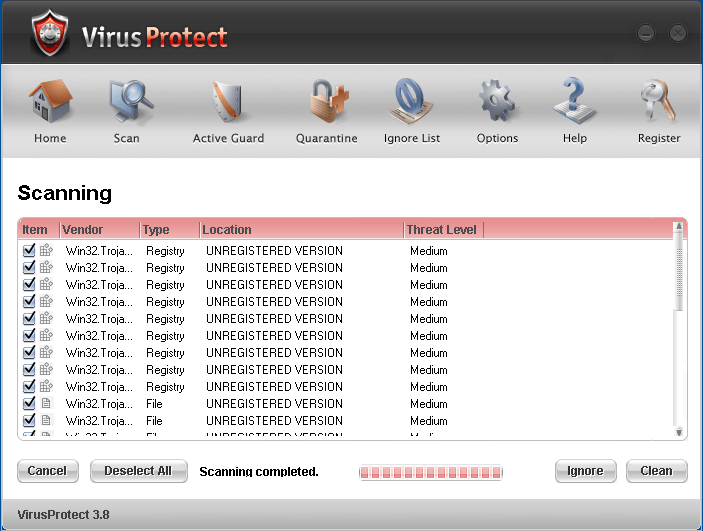
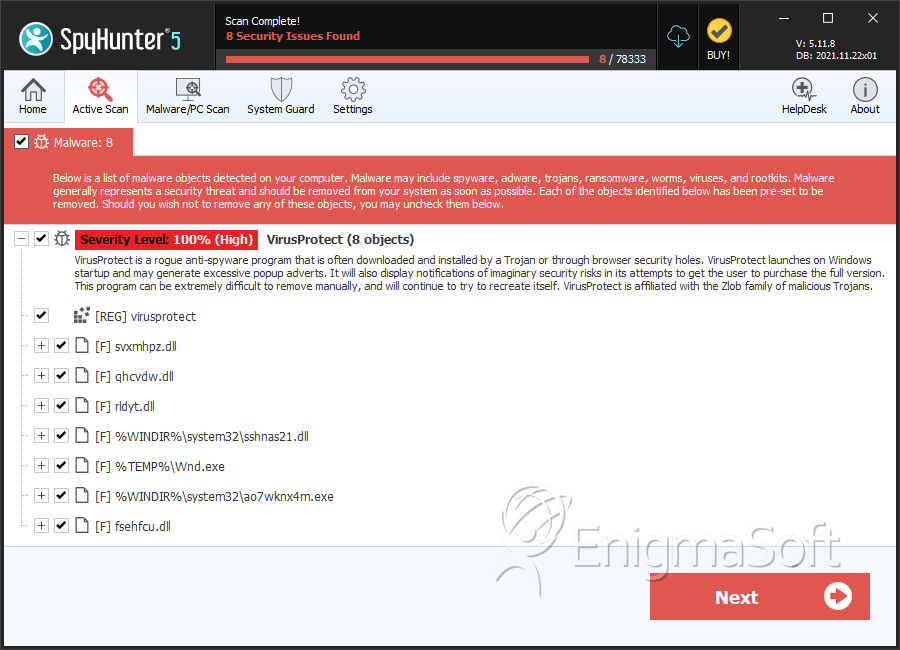
VirusProtect v.3.8 is a rogue anti-spyware program that is often downloaded and installed by a Trojan or through browser security holes. VirusProtect launches on Windows startup and may generate excessive popup adverts. It will also display notifications of imaginary security risks in its attempts to get the user to purchase the full version. This program can be extremely difficult to remove manually, and will continue to try to recreate itself. VirusProtect is affiliated with the Zlob family of malicious Trojans. The latest version of this rogue software program is VirusProtect 3.8. Parasite Type: A cocktail of Rogue Anti-Spyware Programs & Trojans.

VirusProtect Method of Infection

Click on the “How VirusProtect Infects Your Computer” video to see an VirusProtect infection in action! See through the eyes of an unsuspecting Internet user while him/her is being victimized by VirusProtect. Tip: Turn your sound ON and watch the video in Full Screen mode to fully experience how VirusProtect infects a computer. In the “How VirusProtect Infects Your Computer” video, the following VirusProtect actions occur:

  • The Internet user surfs the Web and visits a questionable website. A large amount of rogue anti-spyware programs like VirusProtect are mostly pushed through adult websites.

  • The Internet user downloads a free video codec called “Video ActiveX Enhancement 2.07″ which comes bundled with VirusProtect. Freeware or shareware programs tend to come with unwanted programs such as VirusProtect. Do not install any free software without reading its EULA. By simply reading a program’s EULA, you can determine whether a program you are installing has spyware bundled with it.

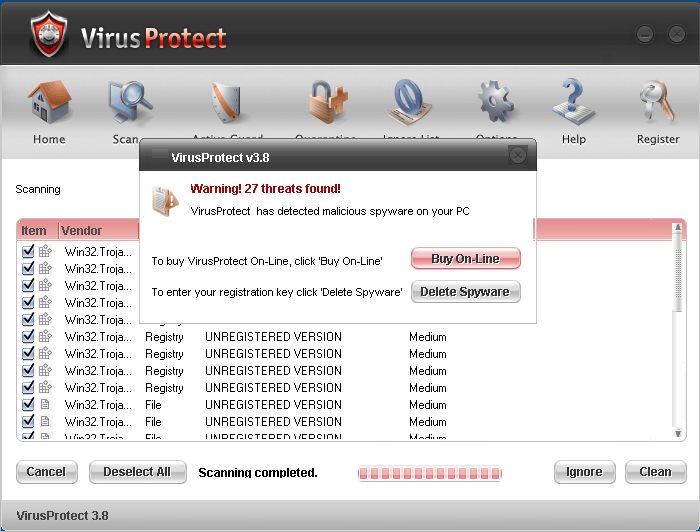
  • The Internet user is infected with the rogue anti-spyware program VirusProtect. VirusProtect runs a scan on the computer and gives a false spyware report claiming that the computer is infected with spyware. Once the scan is completed, a warning message appears with two buttons, one that says “Buy On-Line” and the other “Delete Spyware”. This deceptive tactic is an attempt to scare the Internet user into clicking the “Buy On-Line” button.

  • Fake warning message reads:

    • “Warning! 26 threats found! VirusProtect has detected malicious spyware on your PC. To buy VirusProtect On-Line, click ‘Buy On-Line’.” To enter your registration key click ‘Delete Spyware’.
  • The Internet user closes all the fake Windows error messages and warnings and is unaware that VirusProtect is still running its malicious tasks in the background. VirusProtect reloads itself on a timer so if the Internet user closes the program it will only take a few moments until it opens again. The average Internet user does not realize when spyware has infected his/her computer until it is too late and the spyware problem has already spread throughout the computer.

  • Internet user opens web browser and is redirected to a rogue website called asecurevalue.com. The Internet user is bombard with websites that pop up messages that tries to push a product on him/her. Ignore such messages! We recommend closing these windows by clicking on the X instead of the OK button.

  • VirusProtect Symptoms

    The following VirusProtect symptoms occur:

    • VirusProtect displays a fake system alert similar to a Windows notification message. A red or green flashing icon appears in your system tray. If you click on the icon, a fake system alert pops up and directs you to a rogue website called safetyuptodate.com. In some cases, even when you don’t click on the icon the fake system alert may still pop up. The fake system alert promises to give you a legitimate anti-spyware program that will help you fix spyware problems, but instead it really reports false information to try to trick you into purchasing the program. VirusProtect’s false sytem alert message reads:
      • System Alert: Trojan-Spy.Win32@mx Type: Spyware/Trojan Vulnerable: Windows 95/98/ME/NT/2003/Windows XP Description: Spyware program that sends confidential information to a remote attacker. Protection: Click this baloon to download official security software.”

    • VirusProtect hijacks or modifies your homepage and displays new desktop shortcuts. VirusProtect changes your default homepage to a different homepage and creates new unnecessary shortcuts on your desktop. Sometimes VirusProtect won’t even allow you to change it back to your original homepage. Websites that redirects you to is asecurevalue.com and malwareburn.com.

    • VirusProtect installs a rogue toolbar called Security Toolbar 7.1. Security toolbar 7.1 is a rogue toolbar that comes with two green bars, one that says “block adware” and the other “remove spyware”. If you click on either of them you’re directed to a rogue anti-spyware site such as Malwareburn.com which can install additional malware.

    • VirusProtect bombards your PC with fake Windows warnings messages. Even after you’ve closed all the VirusProtect messages or your PC has been idle for awhile, you’ll still get constant alert popups appearing on your system tray or on your screen.

    VirusProtect Anatomy

    As new VirusProtect spyware components is reported by our customers and our Spyware Threat Research Labs, we will update this section. Name: VirusProtect 3.8.exe File Size: 1818624 bytes MD5: 7ffe0f3cb476f7f52372c7c5b0ad23db Symbolic Links: Uninstall VirusProtect 3.8.lnk VirusProtect 3.8.lnk VirusProtect 3.8 Website.lnk VirusProtect 3.8.url VirusProtect 3.8.exe vp.dat VirProtect.com WHOIS Information: Registration Service Provided By: ESTDOMAINS INC Contact: +1.3027224217 Website: http://www.estdomains.com Domain Name: VIRPROTECT.COM Registrant: PrivacyProtect.org Domain Admin (contact@privacyprotect.org) P.O. Box 97 All Postal Mails Rejected, visit Privacyprotect.org Moergestel null,5066 ZH NL Tel. +45.36946676 Creation Date: 23-Oct-2007 Expiration Date: 23-Oct-2008 Domain servers in listed order: ns4.sigmacode.biz ns3.sigmacode.biz ns2.sigmacode.biz ns1.sigmacode.biz

    VirusProtect Manual Removal Instructions

    To learn the VirusProtect manual removal process, read the step-by-step instructions provided on this section. Use Caution! Please read the instructions below carefully. Manual removal of VirusProtect is a delicate procedure. Proceed at your own risk. Make sure you backup your system and close all open Internet Explorer windows before you manually remove VirusProtect. To manually remove VirusProtect, follow these removal steps: Step #1: How to Kill VirusProtect files using Process Explorer.

    • 1a. How to Kill VirusProtect processes.

      1. Download and install Process Explorer.

      2. Open Process Explorer.

      3. Locate the VirusProtect processes listed below.

      4. To kill an VirusProtect process, right-click the VirusProtect process and choose the option “Kill Process Tree”.

      5. Kill the following VirusProtect processes:
        VirusProtect 3.8.exe
    • 1b. How to Kill VirusProtect DLL files.

      1. Right-click the Explorer.exe process and choose the option “Properties”.

      2. Click on the “Threads” Tab, locate and highlight the VirusProtect DLL files listed below.

      3. To kill VirusProtect DLL files, click the “Kill” button.

      4. Kill the following VirusProtect DLL files:
        ryxrho.dll vpccw.dll fftktmk.dll gusur.dll
    • Step #2: How to Delete VirusProtect Registry Keys and Values.

      1. Right-click on your Desktop > select “New” option > select “Text Document” (.txt file) option.

      2. Rename the .txt file as a .reg file and call it “Delete_Registry_ VirusProtect_3.8_Entities.reg”. This renamed .reg file is a command that creates a shortcut to your Windows registry and allows you to easily delete registry values.

      3. Right-click and select the “Edit” option.

      4. Copy and paste the VirusProtect keys listed below.

      5. In the menu bar, go to “File” > select “Save” > then click the “X” button to close the file.

      6. Double-click on the .reg file.

      7. When the message box appears saying “Are you sure you want to add the information in C:DOCUME~1%username%DesktopDELETE~1.REG to the registry?”, click the “Yes” button.

      8. When the message box appears saying “Information in C:DOCUME~1%username% DesktopDELETE~1.REG has been successfully entered into the registry.”, click the “OK” button.

      9. The VirusProtect registry keys have been deleted from your registry.

      10. Copy and paste the following VirusProtect keys:
            
    • Step #3: How to Delete VirusProtect Directories.

      1. To locate VirusProtect directories, go to “Start” > “My Computer” > “Local Disk (C:)” > “Program Files” > “Show the contents of this folder”.

      2. Search and delete the VirusProtect directories listed below.

      3. Right-click on the VirusProtect folder and select “Delete”. option.

      4. When the message box appears saying “Are you sure you want to remove the folder [FOLDERNAME] and move all its contents to the Recycle Bin?”, click the “Yes” button.

      5. When the message box appears saying “Renaming, moving or deleting [FOLDERNAME] could make some programs not work. Are you sure you want to do this?”, click the “Yes” button.

      6. Search and delete the following VirusProtect directories:
        VirusProtect 3.8 Video ActiveX Access

    • Step #4: How to Search and Delete C:WINDOWSSystem32fftktmk.dll.

      1. Go back to “Local Disk (C:)” > “Windows” > “System32″ > “Show the contents of this folder”.

      2. Search for fftktmk.dll.

      3. Right-click on the fftktmk.dll file and select the “Delete” option.

    • Step #5: How to Restore Original Default Home Page.

      1. Go to “Start” > “Control Panel” > “Internet Options”.

      2. Click on the General Tab > click the Use Default button under Home Page.

      3. Click “Apply” and then click the “OK” button.

      4. Open a Web browser to verify that your default homepage has been restored.

      Step #6: How to Remove the VirusProtect Icons.

      1. If the VirusProtect icons still remain on your Desktop, you can drag and drop them to the “Recycle Bin”.

      2. Reboot your computer to make sure all changes made for the removal of VirusProtect are complete. If your computer still has issues, you should scan your computer for VirusProtect with a spyware scanner.

    Congratulations!! You’ve completed our VirusProtect manual removal tutorial.

    Submit VirusProtect To Our Spyware Threat Research Labs

    Since VirusProtect spyware components change constantly, you may come across application issues that prevent you from removing VirusProtect completely. You can report VirusProtect spyware components by using SpyHunter’s Free Support Log System. Our Support Log System takes snapshots of all the points of execution on your operating system, allowing us to precisely identify each and any problem. We encourage you to post your Support Logs on this article so we can help you come up with a custom fix. Below are the instructions on how to generate Support Logs using SpyHunter. Open SpyHunter > click on the “Generate Support Log” button > click on the “Copy to Clipboard” button to save your Support Logs > Post your Support Logs to this article.

    Disclaimer

    Warning!! Enigma Software Group can not be held responsible for any problems that may occur by using the information contained within this VirusProtect removal guide. By following any of these VirusProtect removal instructions, you agree to be bound by the disclaimer. If you do not agree, do not follow these VirusProtect removal instructions. We make no guarantees that these VirusProtect removal instructions will completely remove VirusProtect. Spyware changes regularly; therefore, it is difficult to fully clean an infected machine through manual means. In order to effectively clean and secure your computer, we recommend you purchase our spyware remover SpyHunter or seek professional help from a computer expert. ESG Support Center

    Share and Enjoy: These icons link to social bookmarking sites where readers can share and discover new web pages.
    • Digg
    • del.icio.us
    • Furl
    • StumbleUpon
    • Technorati
    • YahooMyWeb
    This entry was posted on 12/25/07 and is filed under Rogue Anti-Spyware Program. You can follow any responses to this entry through the RSS 2.0 feed. You can leave a response, or trackback from your own site.

    Leave a Comment

    Note: Abusive comments are not allowed. Please do not post comments regarding technical support issues. ESG customers that have issues with SpyHunter should open a customer support ticket.

    *
    To prove you're a person (not a spam script), type the security word shown in the picture. Click on the picture to hear an audio file of the word.
    Click to hear an audio file of the anti-spam word

    Poll

    How much money have you spent trying to rid your PC of spyware?
    View Results

    Archives

    Home Sitemap RSS Feed Privacy Policy End User License Agreement Copyright 2003-2010. Enigma Software Group USA, LLC. All Rights Reserved.