IE Defender
Threat Scorecard
EnigmaSoft Threat Scorecard
EnigmaSoft Threat Scorecards are assessment reports for different malware threats which have been collected and analyzed by our research team. EnigmaSoft Threat Scorecards evaluate and rank threats using several metrics including real-world and potential risk factors, trends, frequency, prevalence, and persistence. EnigmaSoft Threat Scorecards are updated regularly based on our research data and metrics and are useful for a wide range of computer users, from end users seeking solutions to remove malware from their systems to security experts analyzing threats.
EnigmaSoft Threat Scorecards display a variety of useful information, including:
Ranking: The ranking of a particular threat in EnigmaSoft’s Threat Database.
Severity Level: The determined severity level of an object, represented numerically, based on our risk modeling process and research, as explained in our Threat Assessment Criteria.
Infected Computers: The number of confirmed and suspected cases of a particular threat detected on infected computers as reported by SpyHunter.
See also Threat Assessment Criteria.
| Threat Level: | 100 % (High) |
| Infected Computers: | 52 |
| First Seen: | July 24, 2009 |
| Last Seen: | June 10, 2022 |
| OS(es) Affected: | Windows |
IE Defender Image
IE Defender is classified as a rogue anti-spyware application because of its misleading and aggressive advertising practices. IE Defender creators and their marketing affiliates propagate and install IE Defender's rogue anti-spyware application through a download that is bundled with a Trojan generated by a Browser Helper object (BHO). Most of these Trojan bundled downloads circulate in web sites that offer a "video codec" to view free adult entertainment videos.
Once your computer gets infected with the Trojan, it will start showing up an annoying pop-up message: "NOTICE: Your system is infected and your computer performance is not at the highest level. Full system optimization will greatly increase your computer's performance and prevent data loss". Do NOT click on this fake error message because it will redirect your IE to IE Defender's website where you will be forced to download IE Defender's anti-spyware application.
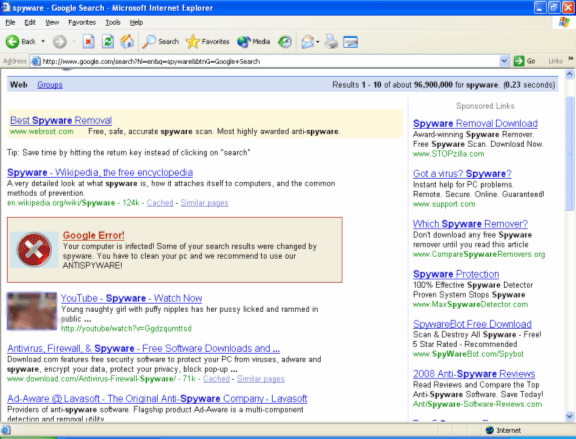
Moreover, the Trojan, which has come bundled from either IE Defender and/or their affiliates, hijacks your search engines (such as Google, Yahoo and MSN) and displays a fake warning message within your search results claiming that your computer is in serious danger because of hazardous parasites in your system. This is the manner how they attempt to trick the users into purchasing IE Defender full commercial version. Again, do NOT click on this fake error message because it will direct you IE Defender's homepage where you will be offered to purchase IE Defender's application.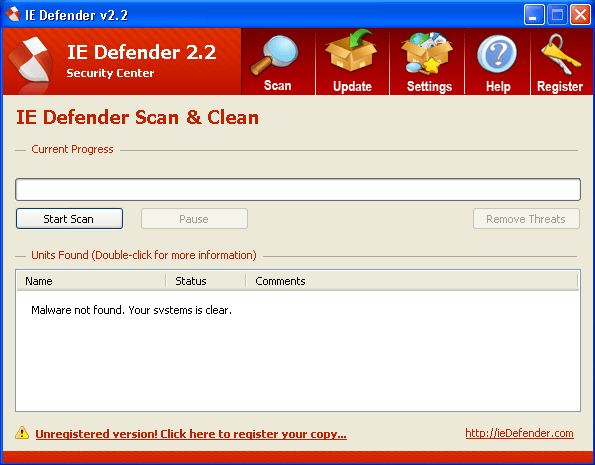
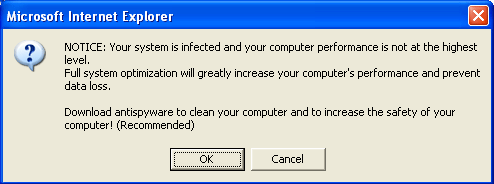
Table of Contents
Aliases
15 security vendors flagged this file as malicious.
| Anti-Virus Software | Detection |
|---|---|
| TrendMicro | TROJ_AGENT.AJH |
| Symantec | Trojan Horse |
| Sunbelt | Rootkit.Win32.Podnuha.bhw |
| Sophos | Mal/BHO-Fam |
| Prevx1 | Medium Risk Malware |
| Panda | Trj/Downloader.MDW |
| NOD32 | Win32/Rootkit.Podnuha.BHW |
| Microsoft | Trojan:Win32/Boaxxe.H |
| McAfee-GW-Edition | Trojan.BHO.Gen |
| McAfee | Generic.dx |
| Ikarus | Rootkit.Win32.Podnuha |
| Fortinet | W32/Podnuha.BHW!tr.rkit |
| eTrust-Vet | Win32/Kvol!generic |
| DrWeb | Trojan.Siggen.644 |
| Comodo | TrojWare.Win32.Rootkit.Podnuha.~K |
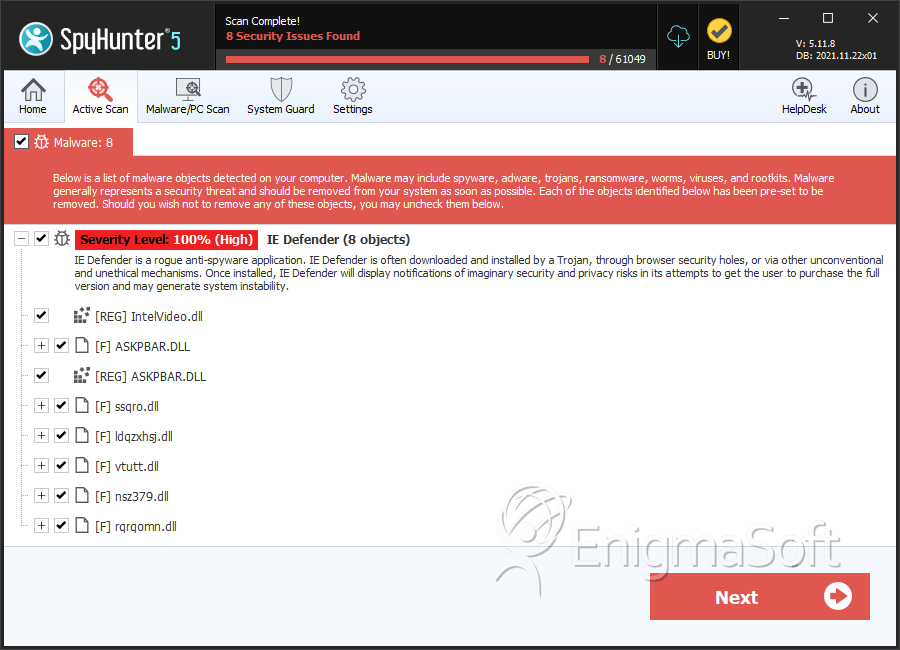
SpyHunter Detects & Remove IE Defender
File System Details
| # | File Name | MD5 |
Detections
Detections: The number of confirmed and suspected cases of a particular threat detected on
infected computers as reported by SpyHunter.
|
|---|---|---|---|
| 1. | ASKPBAR.DLL | a483d19ac62c92525d73542d14e36d04 | 10 |
| 2. | byvsr.dll | b9631b35cc20e7c501f9592e9a75d40b | 0 |
| 3. | ttvbonsmf.dll | 3fcc5dd78a3dab27cfab081bc3dd6b22 | 0 |
| 4. | pdswin.dll | cf66c22c4a4992094a5e1be3d7cbc0fb | 0 |
| 5. | nsaA7.dll | dedd376c1f4d3876609c3ad02c7d9ba9 | 0 |
| 6. | mljji.dll | 22292bb833bda29e499aa310fbac8ad4 | 0 |
| 7. | mscfg32.dll | d739f0e2f5d4605f6283bd3789f762d2 | 0 |
| 8. | windivx.dll | c82a2b61005e211c70cbd989a79d665f | 0 |
| 9. | msvideo.dll | c7c05b733e1db6c2ee9d847b7296a0ab | 0 |
| 10. | tufxleqe.dll | e06e0cb0b3756a20f13ddb2d93169f22 | 0 |
| 11. | nsn2B.dll | 05c505be23642e3b1e47bb4ae46ceb37 | 0 |
| 12. | ddcdedd.dll | 1bc5752bd72f44f004d9f061dd7f9e00 | 0 |
| 13. | advpac.dll | bcf3a381bbe26d9c1ec24bac8b18f567 | 0 |
| 14. | vkcxxfvi.dll | 7df5417b22988d88e8080a44392ade95 | 0 |
| 15. | VideoMP3.dll | 39e0acc720b428e31ebb3ef4e3c43a8f | 0 |
| 16. | VideoMP3.dll | 428c6d6ac084f4a7d369ca6c1d6d056b | 0 |
| 17. | IntelVideo.dll | 327e40b3ed4d28b6ee765fae9c6622af | 0 |
| 18. | VideoMP3.dll | a2ba20a4c6194e0f544ee5d3a55f4731 | 0 |
| 19. | mwgvsu.dll | 396955766b2e512bc3545a24bc485dbe | 0 |
| 20. | VideoMP3.dll | 5244d884fb31be263bf145c01c9f9918 | 0 |
| 21. | a3gpcodec.dll | d02194a30b6316498631a1350280f1ce | 0 |
| 22. | XunLeiBHO_Now.dll | 29c3bffe619b600215def6631cd7f25c | 0 |
| 23. | dx50codec.dll | 1ee34dfe18c9e6a572ea35b908c89e64 | 0 |
| 24. | ieDefender-setup[2].exe | ce7b1332dc2bfb7c24bfadf9c55faf74 | 0 |
| 25. | iedefender.exe | 7debb3de3e5ca3835d3d0067529a2318 | 0 |
| 26. | ieDefender[1].exe | 7a974fed8ffba2b4c36291a75f5f00c0 | 0 |