How To Remove Malicious Files
Applications are made up of individual files. In the case of harmful spyware or malicious applications, they may have associated files. Harmful applications can be used to hijack your browser, change your settings and even monitor your web surfing activities.
Generally it is required that you remove a harmful file to eliminate the threat of a spyware parasite. Removal of spyware can be done manually or with the assistance of an anti-spyware application. There is a risk involved when attempting to manually remove a computer parasite. Deleting the wrong file may damage seriously your computer.
Table of Contents
Step 1. Find out how to locate and delete unwanted malicious files.
It is important to back up your system. Manually deleting files on your computer can be risky. If the wrong file is deleted, then you could lose important data and damage your computer. Setting a System Restore point allows you to revert back to recover lost files. To set a System Restore point, go to Start menu > All Programs > Accessories > System Tools > System Restore. Follow the instructions on-screen to complete the process. You may also run a spyware scan on your system to automatically detect harmful files.
Step 2. Locate the malicious file(s).
Use Windows Search Tool to locate the associated malicious file provided you know the name of it. Windows Search Tool is able to give you the exact file path.
- Go to Start menu > click Search > click All Files or Folders > type in the file name > click Search. When performing the file search, it is recommended that you select "Look in: Local Hard Drives" to get the best results.
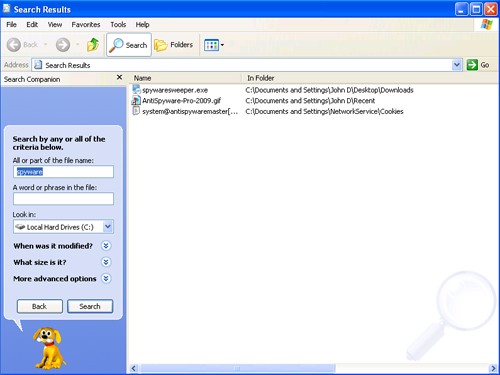
- To make hidden files visible, you may be required to click on "Show the contents of this folder."
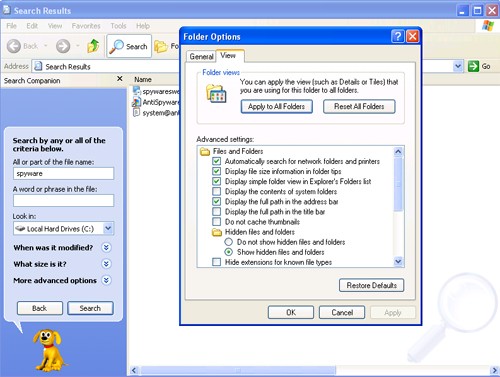
- If you wish to view all hidden files and folders, then you must change the folder options settings by going to Folder Options. Go to the Tools menu > select Folder Options > click the View tab > click the radio button "Show hidden files and folders" > click OK.
Step 3. Delete the malicious file(s).
In rare cases the harmful file process is running on your system. Before you are able to delete a running process, you must end it. To avoid this situation, it is recommended that you reboot your system into Windows Safe Mode. Safe Mode prevents programs from automatically loading at startup.
- Right-click on the malicious file and select "Delete."
When the message box appears saying "Are you sure you want to send '[FILENAME]' to the Recycle Bin?", click the "Yes" button.
- After deleting the malicious file, restart your computer.
If you experience issues after attempting manual removal of a malicious file, then you may download SpyHunter's spyware scanner to automatically detect the infected file.