5 Simple Ways to Speed Up Your Computer
From time to time your computer starts to operate slowly and you want to find ways to improve its performance without breaking the bank on a new system. There are a few easy and free steps that you can take to speed up your computer.
If you are running one of the many versions of the Windows operating system, then you will know as well as I do that it can be a memory hog. Addition additional system memory, or RAM, is one of the easiest solutions to speeding up the performance of your computer. Aside from purchasing additional RAM, there are other ways to improve performance without buying anything.
Table of Contents
1. Optimize Windows Explorer
Optimizing the Windows Explorer is an essential step to improving overall system performance. During the startup process of your Windows system, it automatically searches for network folders and printers. This functionality can be disabled to speed up the boot process. This can be done by following the steps below.
- Open Windows Explorer and click on the Tools menu > select Folder Options > select the View tab.
- Find and uncheck the box next to Automatically search for network folders and printers as shown in Figure 1.
- Click Apply.
- Click OK.
- Restart your computer.
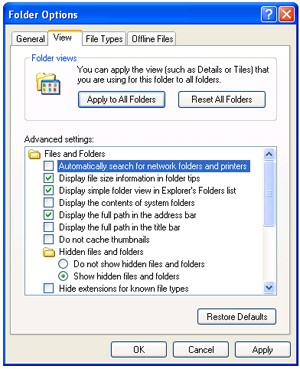
Figure 1. Folder Options window
2. Defragment Your Hard Drive
Defragmenting the hard drive is another step that can be taken to improve overall system performance. Hard drives over time become fragmented leaving bits of applications and files scattered through the drive which will increasingly slow the time it takes for your system to locate specific data. Defragmenting will compact the data so that the programs are easier to find which in return speeds of seeking times and improves performance. Follow the steps below to defragment your hard drive.
- Go to Start menu > select Programs > select Accessories > select System Tools > then select Disk Defragmenter.
- Select the drive that you wish to defragment and click the Defragment button.
- The program will first automatically analyze the drive and the type of condition that it is in.
- If the drive needs to be Defragmented then the program will automatically start the defragmenting process as shown in Figure 2.
- Once it is complete, then you can restart your computer to free up memory used during the process.
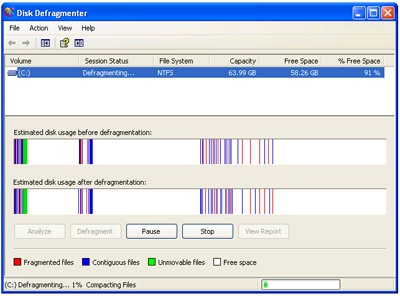
Figure 2. Disk Defragmenter
3. Uninstall Unused Device Drivers
Did you know that you can uninstall unused device drivers to speed up your computer? Uninstalling unused device drivers is another free way to speed up your computers performance. Unused drivers will utilize system resources which can drastically slow down your computer. In addition, unused drivers can load during startup which will increase the time that it takes your system to boot. Getting rid of unused device drivers is usually a task oriented for advanced computer users but by following a certain procedure, anyone can do it.
- Press the Windows key and Break key on your keyboard simultaneously and then System Properties will open up.
- Select the Advanced Tab and click the Environmental Variables button.
- Under where it says System variables, click the New button.
- In the variable box for Variable name, type in devmgr_show_nonpresent_devices and then type in 1 for the Variable value box and click OK.
- Click OK again.
- Go to the Hardware tab.
- Click the Device Manager button.
- Expand all items in the list shown in Figure 3 and look for any icons that are washed out from the other icons. Warning!: Be careful as to not delete any used drivers or you could seriously damage your system.
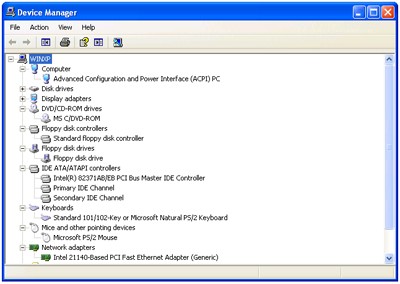
Figure 3. Device Manager
4. Delete Unused Software and Applications
Deleting unused software or applications is probably the easiest task in attempting to speed up your computer while freeing up disk space at the same time. If you notice that you have a large application that you do not ever use, then you can easily uninstall it from the Add/Remove Programs function in Windows. Go to your Control Panel and double click Add/Remove Programs and then highlight the program that you wish to uninstall as shown in Figure 4 and click the Remove button. The un-installation of some applications requires that you restart your system.
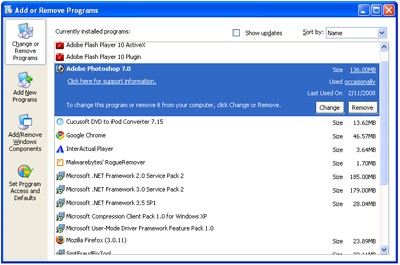
Figure 4. Add or Remove Programs
5. Remove Malware
Removing malicious software such as spyware, trojans or viruses can have a massive impact on how well your system performs. Many malicious software applications use large amounts of system resources and take up a lot of disk space. Detecting and removing these parasites will allow your computer to run at its full potential while freeing up additional disk space.
A quick way to safely detect any malware, spyware, worms, trojans or viruses on your PC, you can run SpyHunter's Scanner.
Do you have an easy way for improving the performance of your computer? If so, we would like you to share it with us by posting a comment below.