How to Submit a Customer Support Ticket

If you are experiencing any issues or have any questions, comments or suggestions related to SpyHunter, we strongly encourage you to open a support ticket using our customer and technical support system. Please note that our customer support system is only available for customers that have the full version of SpyHunter.

You can submit and view a customer support ticket either by logging into our “Members Section” or directly going to the integrated customer support system in the SpyHunter (click on the “Spyware HelpDesk” tab to open a customer support ticket or send a diagnostic report known as a Support Log).

With the Spyware HelpDesk, you can send a diagnostic report (Support Log) to our technical support team which they will analyze and use to generate customized fixes for hard-to-remove malware and send the fix directly to your SpyHunter. Read on how SpyHunter’s Spyware HelpDesk works.

Note: SpyHunter must be registered and activated for SpyHunter’s Spyware Helpdesk to function. To activate SpyHunter, you must enter the username and password (found on the “Order Confirmation” email) into the “Options” panel of the SpyHunter. To learn how to register and activate SpyHunter, go to “How to Activate SpyHunter”.

As a SpyHunter customer, you have access to our customer customer support system that allows you to submit and view support tickets as well as submit diagnostic reports (Support Log) for unique malware infections plaguing your PC.

How to Submit and View a Customer Support Ticket

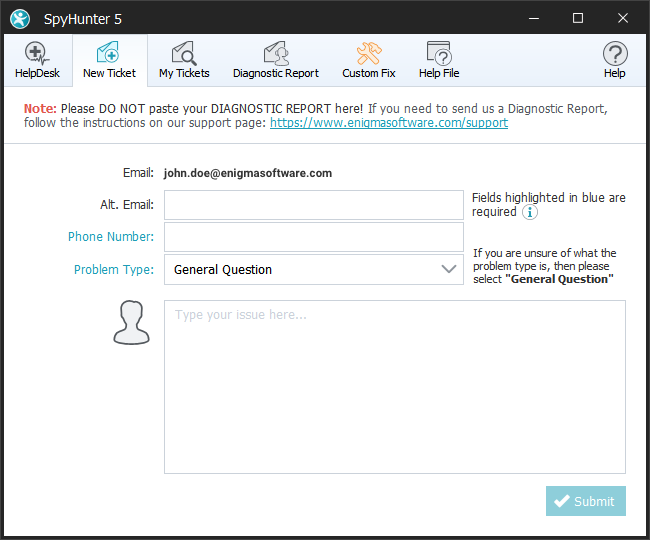
To open a support ticket with our technical support team, open SpyHunter, click on the “Spyware HelpDesk” tab, and then click the “Open Support Ticket” button. Please note that you must be connected to the Internet for this feature to work. The main view panel will change to show the “Open Support Ticket” page. Just fill out the appropriate information, and click the “Submit” button at the bottom of the form. Our customer support department will contact you within 48 hours.

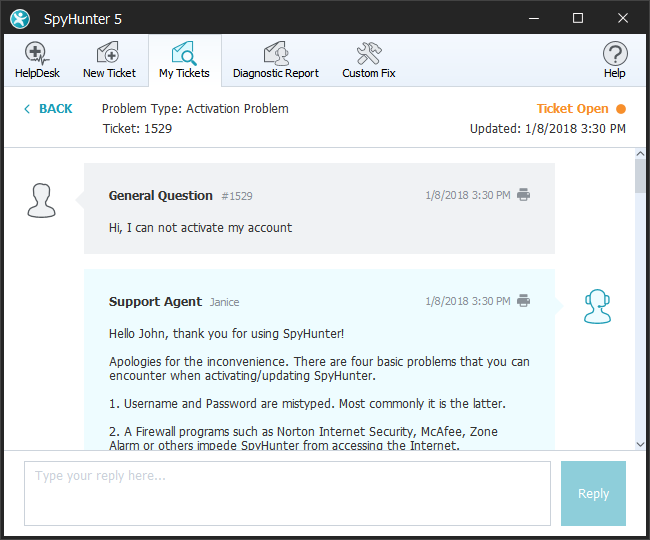
To view your existing ticket requests and responses directly through the SpyHunter’s Spyware Helpdesk, click the “View Existing Tickets” button and all open and closed tickets will be displayed in the main view panel. You can click on any of the icons in the “Request” or “Response” rows to view message details.

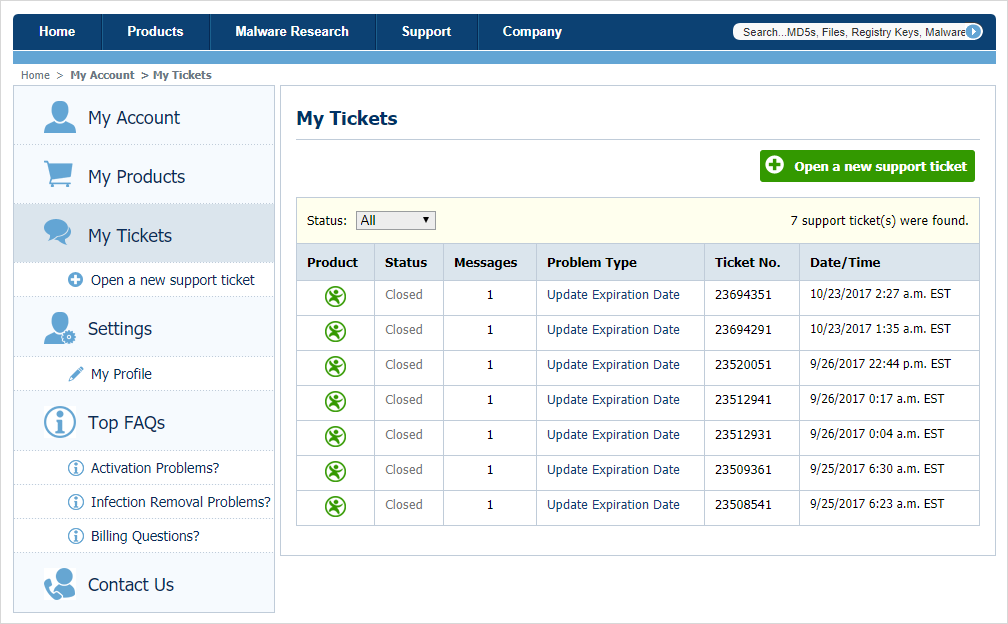
You can also submit support tickets by logging into our “Members Section” and selecting “Submit a Support Ticket” (located either on the sidebar or the the “Members Section” main menu). To view existing support tickets on our “Members Section,” you can select “My Support Tickets” (located either on the sidebar or the the “Members Section” main menu).

How to Generate a Diagnostic Report (Support Log)

In order to offer an effective solution to a unique malware problem, our technical support team may request that you generate and transmit a Support Log. To do so, go to SpyHunter’s Spyware HelpDesk and click the “Generate Support Log” button. This action will generate a diagnostic report of your PC, which our technical support team can use to create a unique custom fix to resolve your issue. Click the “Transmit Support Log” button to send the log directly to our technical support team.

Please DO NOT transmit a Support Log without first opening a support ticket through our customer support system.

Follow ESG

Home | SpyHunter Risk Assessment Model | Privacy Policy | End User License Agreement | Additional Terms and Conditions
Copyright 2003-2012. Enigma Software Group USA, LLC. All Rights Reserved.